Public Alpha Test: Audio Without Compromise - Volumio on Bookworm Begins

Hey @Nathan_Centofanti,

Thanks for the report. Unfortunately, we can’t assist further without full logs and proper hardware details.

Please follow this exact procedure:

Step 1 - Generate Logs

  1. Reboot your Volumio device.
  2. Reproduce the issue (enable Touch Display and observe the failure).
  3. Access http://<your-volumio-IP>/dev in a browser.
  4. Click “Send Log or Bug Report” and wait for the link to appear.
  5. Share that link here.

Step 2 - Hardware Information

Step 3 - Fix Attempt

The Touch Display plugin is known to occasionally misbehave unless installed cleanly. Use this proven sequence:

  1. Uninstall the plugin from the Volumio UI.
  2. Reboot the device.
  3. Reinstall the plugin.
  4. Fully power down the system, wait a few seconds.
  5. Power back on.

This forces X11 and its dependencies to reinitialize correctly.

Once we have the logs and hardware info, we can help further.

@gvolt - perhaps you may have some aces up your sleeve…

Kind Regards,

Testing Summary – Dell-3189

  • OTA Update: Successfully upgraded from V0.067 to V0.068 (system name change required).

  • NAS Mounts: CIFS and NFS operational, though slower when options are unfilled.

  • Audio: Internal audio and external DAC (NAD D3045) working fine.

  • Plugins:

  • Peppy Meter Basic :white_check_mark:

  • FusionDSP :white_check_mark:

  • NowPlaying :white_check_mark:

  • NowPlaying + Peppy Meter Basic :white_check_mark:

  • 80s80s :white_check_mark:

  • Radio Paradise :white_check_mark:

  • Spotify, Tidal and Qobuz :white_check_mark:

  • System Information :white_check_mark:

  • Randomizer :white_check_mark:

Bug Report: http://logs.volumio.org/volumio/RWVo9fN.html
HDMI display: ElecLab 8 Inch 1600x480 Touchscreen Monitor HDMI Capacitive LCD Display Speaker Case RS232/RS485 for RPI 4B 3B+ 3B 3A+ 2B B+ (cannot find a spec sheet. Amazon link here: Amazon.com: ElecLab 8 Inch 1600x480 Touchscreen Monitor HDMI Capacitive LCD Display Speaker Case RS232/RS485 for RPI 4B 3B+ 3B 3A+ 2B B+ : Electronics). Graphics are through HDMI, touch input via USB.
USB Speaker: Generic, purchased from Amazon. Model listed as LLR050
Pi Board: 3 B Plus

I tried the fix attempt and unfortunately I get the same result. Hope this helps. Let me know if there are any other diagnostic data you may need.

Hey @Nathan_Centofanti,

Thanks for following up.

Since the framebuffer driver is confirmed present, the next step is to verify whether all essential X server components are properly installed. Incomplete or broken installations can cause startx to fail even when fbdev is available.

Please run the following via SSH and paste the result:

dpkg -l | grep xserver-xorg

This will help confirm that packages like xserver-xorg-core, xserver-xorg, and supporting drivers are fully installed.


FYI: Your display matches the ElecLab 8" 1600x480 panel, and there is a vendor repository with sample configuration and support notes here:
https://github.com/eleclab-rpi/8INCH_HDMI_1600x480

While Volumio does not use their scripts, the timing parameters and compatibility notes are useful reference.

Kind Regards,

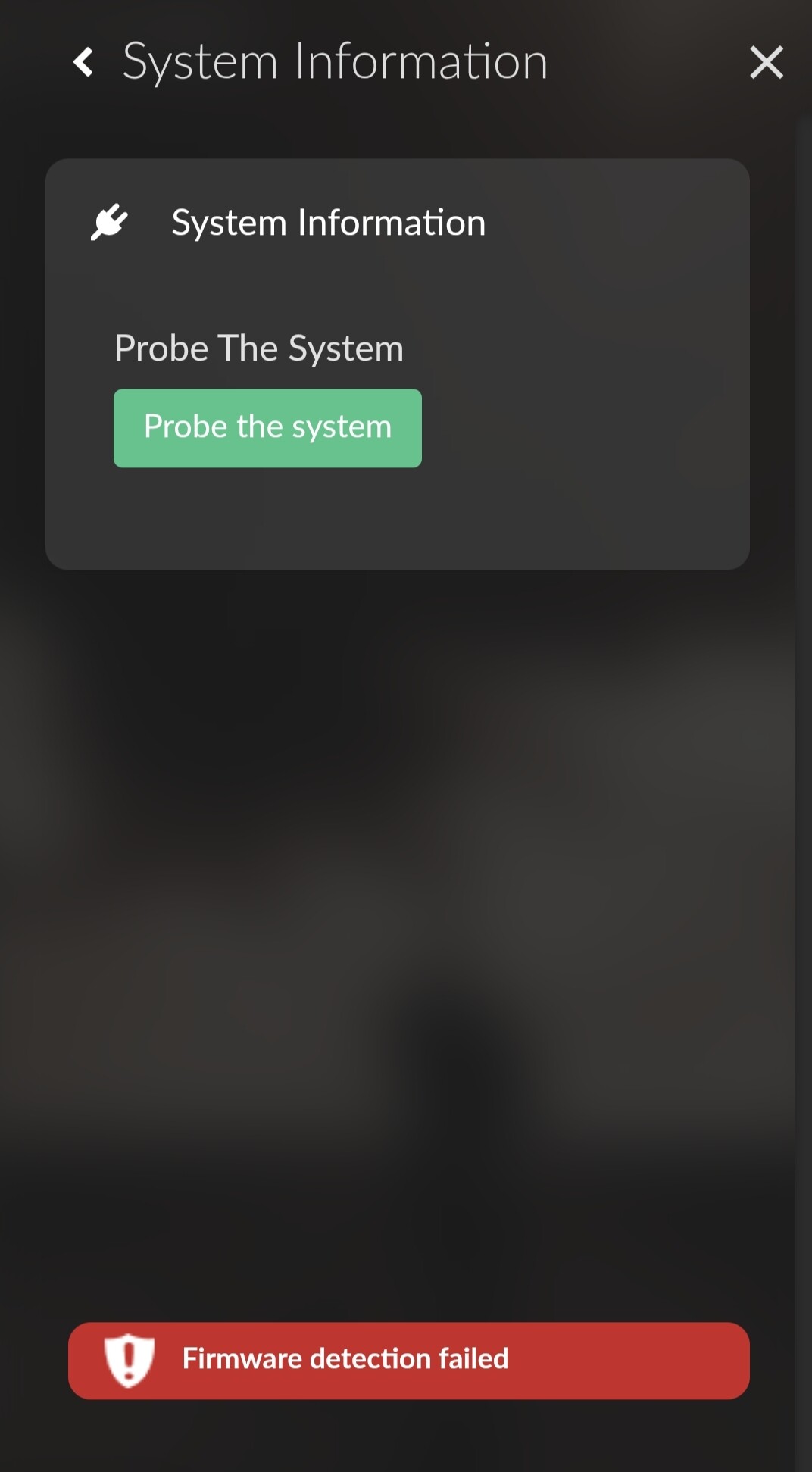
Just a little note: the System information plugin does not recognize the firmware. However, it shows all the information.

The same applies to the encoder plugin. The plugin works without any problems

Hey @Gelo5,

Thanks for sharing the screenshots.

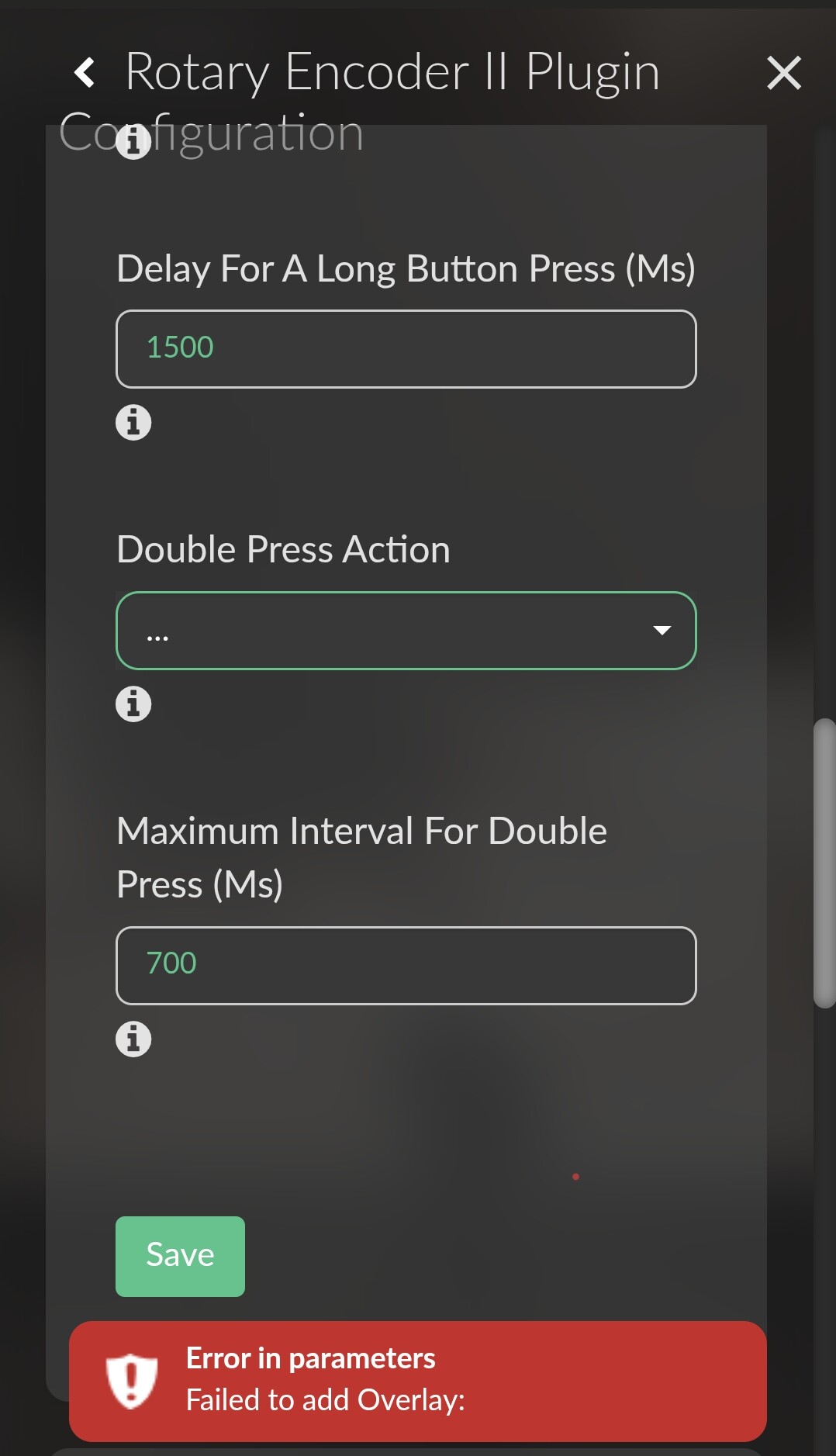
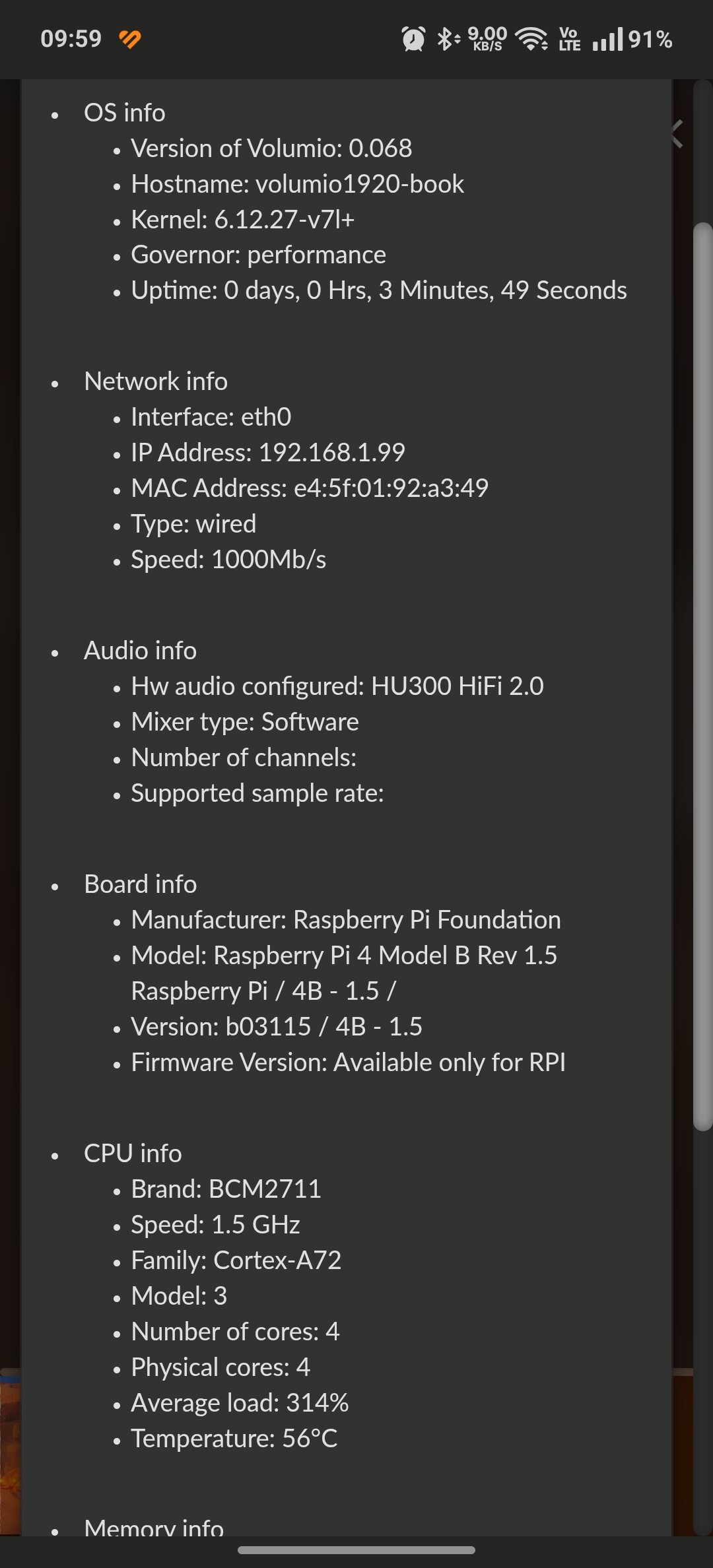
At the moment, we cannot determine the exact hardware or build number from the UI panels alone. The System Information plugin error (Firmware detection failed) means the system was unable to resolve a known board identifier - likely due to missing or unreadable values from /proc/device-tree/model or equivalent. Likewise, the Rotary Encoder II plugin error (Failed to add Overlay:) suggests that dynamic overlay insertion isn’t supported or permitted in the running kernel.

There’s no visible indication of:

  • Hostname or build version (e.g., 0.068)
  • Kernel version
  • CPU, board, or firmware details

What we do see confirms it’s a recent Volumio Alpha build on Bookworm, but we cannot say which one.

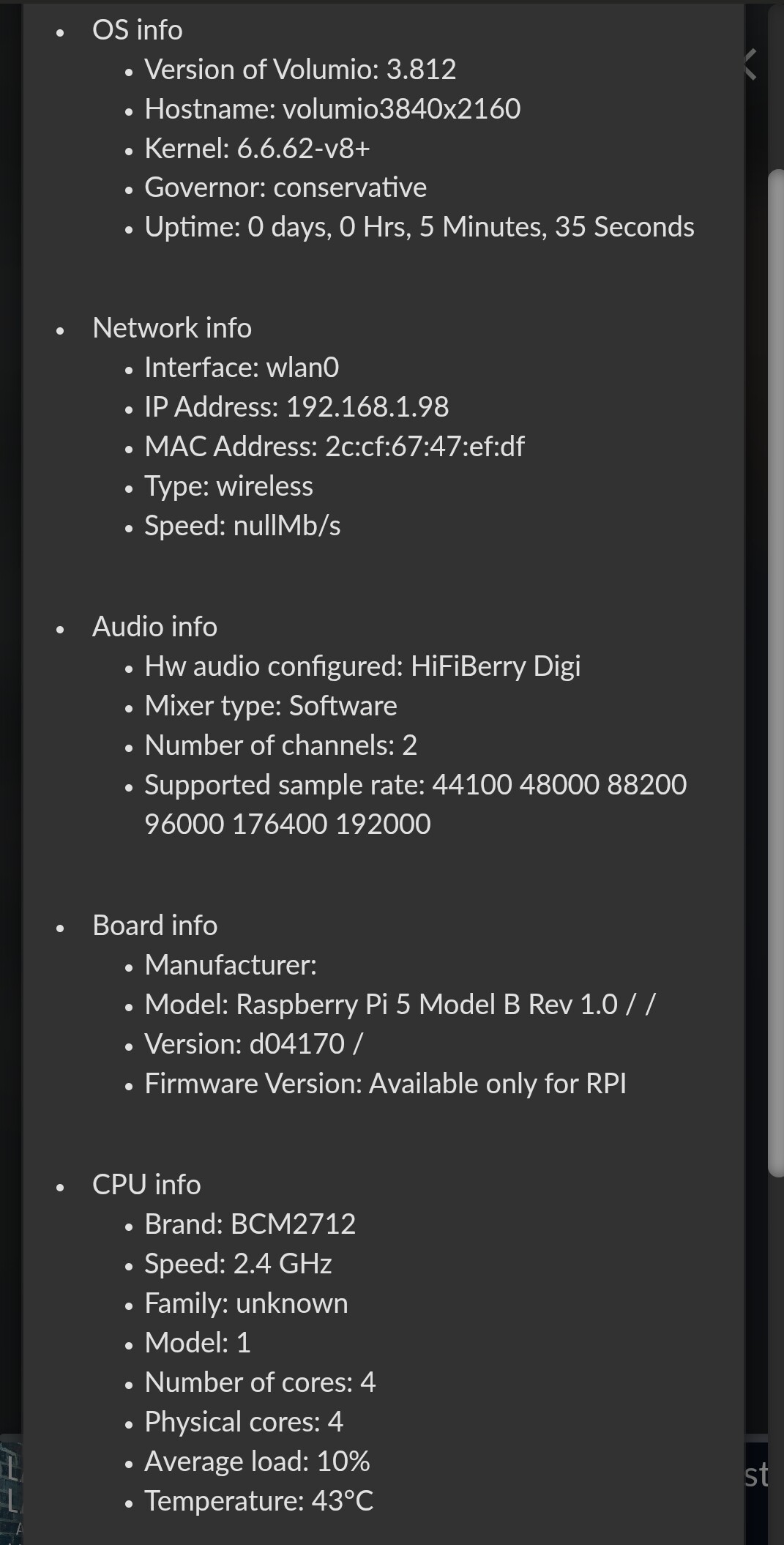
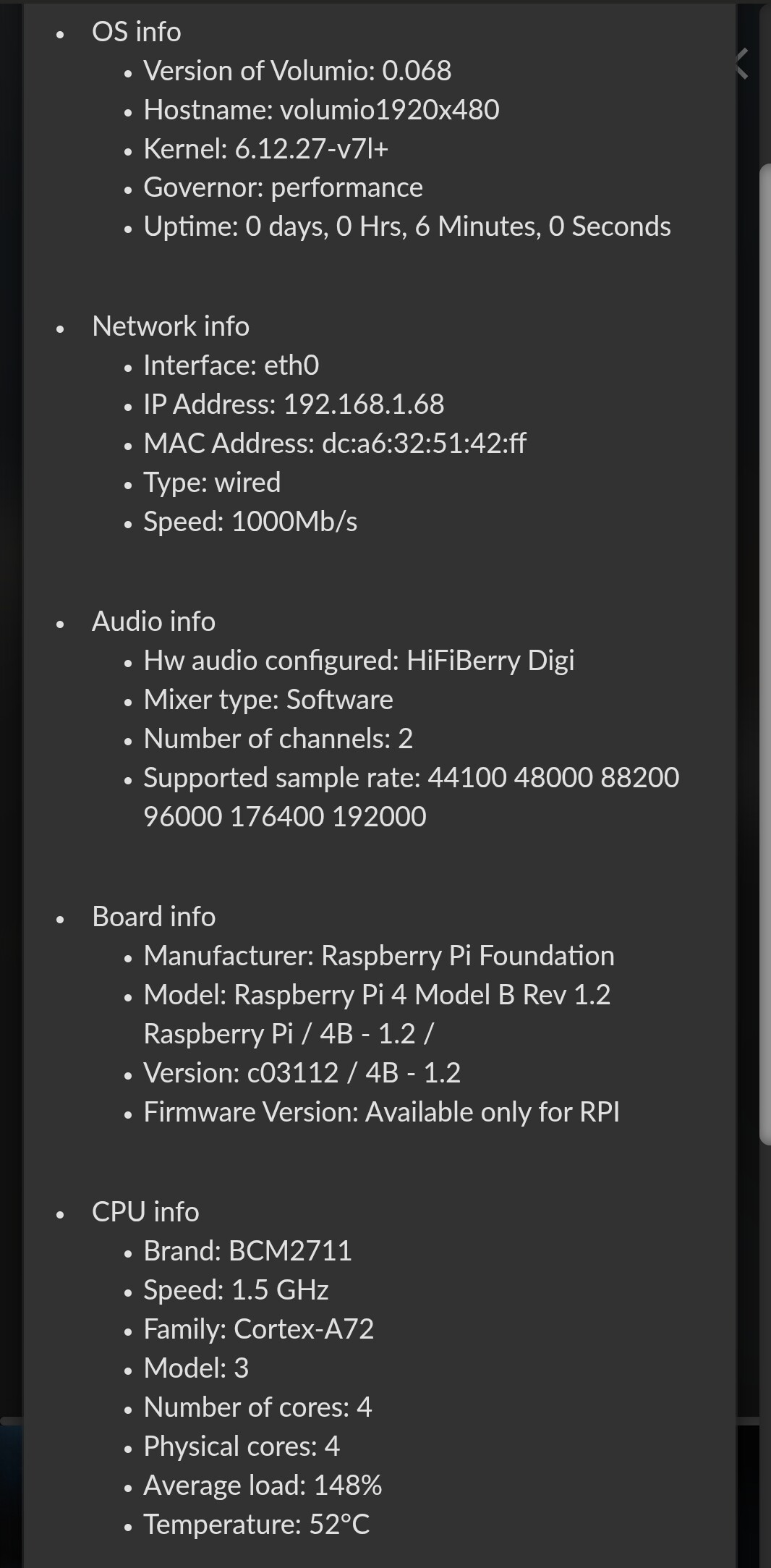
As comparison - taken just now:

Kind Regards,

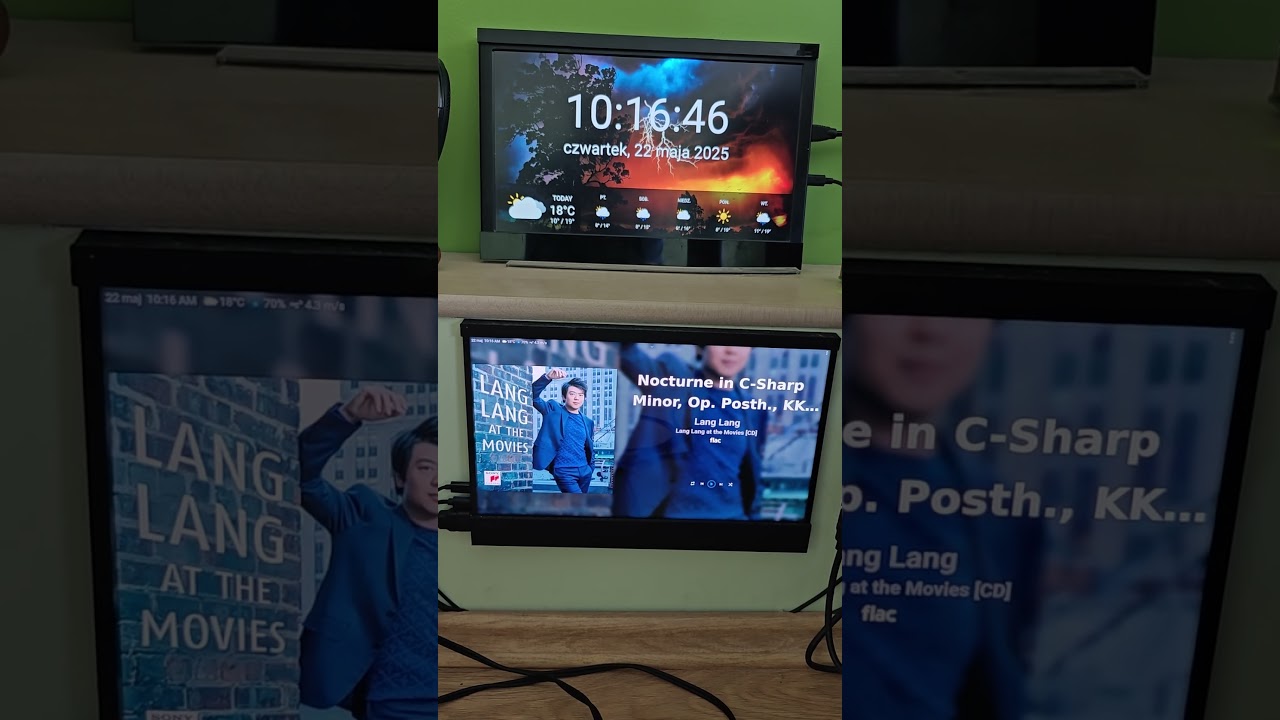
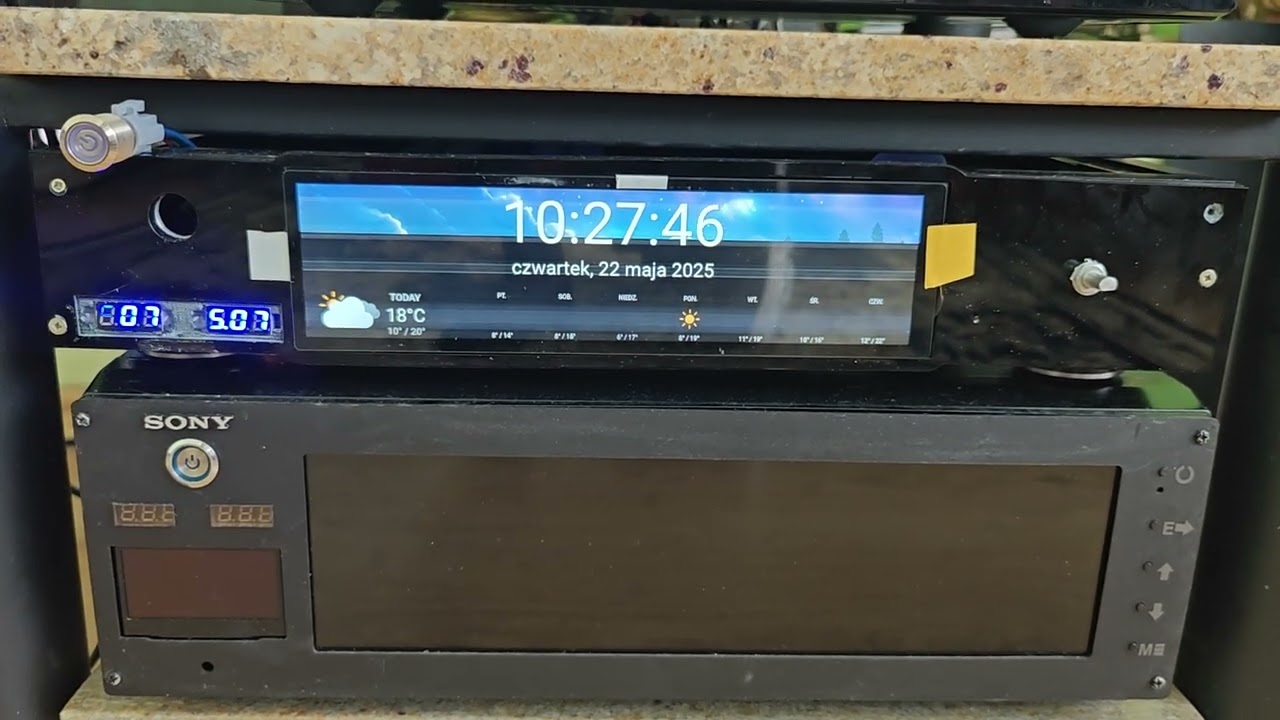
In the now playing plugin, the image loads like in a movie

Top: Bookworm
Bottom: Buster

Next:
Don’t look at the monitor (damaged)

1 Like

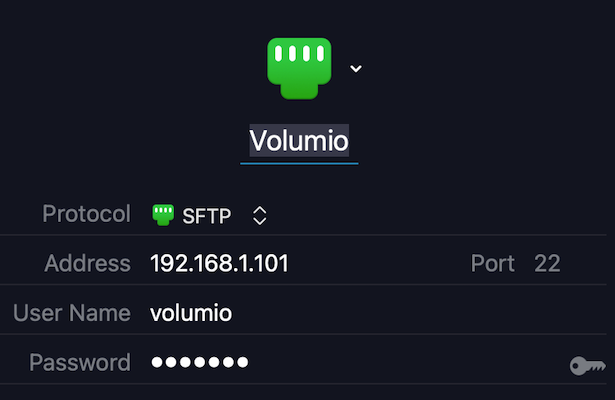
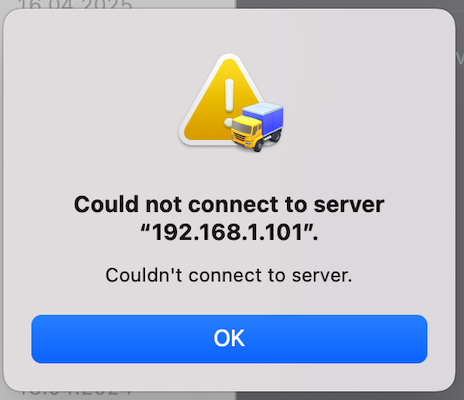
After update from 061 to 068 can not connect by Transmit to system.
Screenshot 2025-05-22 at 11.22.16
Screenshot 2025-05-22 at 11.22.30

Hey @VictorDUA,

Thanks for the report. Unfortunately, we can’t assist further without full logs and proper hardware details.

Please follow this exact procedure:

Step 1 - Generate Logs

  1. Reboot your Volumio device.
  2. Reproduce the issue (enable Touch Display and observe the failure).
  3. Access http://<your-volumio-IP>/dev in a browser.
  4. Click “Send Log or Bug Report” and wait for the link to appear.
  5. Share that link here.

Step 2 - Hardware Information

Checkpoint

  • At this point I assume that SSH is enabled with http://<your-volumio-IP>/dev toggle.

Kind Regards,

Hey @Gelo5,

Notified plugin developer.

Kind Regards,

1 Like

Hi @nerd

Maybe this is in wrong place to ask. Please move it if that´s the case.
So, could this dac be compatible with Rpi 5 on bookworm ?

https://www.dfrobot.com/product-2486.html

Regards / C

Btw, you are really doing a fantastic work with Volumio running on Bookworm platform!

Thank you and sorry for the false alarm. Forgot to update the ssh in dev - first time updated without clear install. Everything works.

Hey @ClaesM,

Thanks for your message, and glad to hear you’re enjoying the Bookworm-based Volumio builds!

Compatibility Check: DFRobot DAC Audio Decoder Board

This DAC uses the Texas Instruments PCM5122 chip, which is a high-resolution stereo DAC widely supported on Raspberry Pi platforms. The board is electrically compatible with all Pi models that expose I2S on the GPIO header, including the Raspberry Pi 5.

Volumio on Bookworm - Support Status

  • I2S Support: Fully functional on Bookworm-based Volumio with Pi 5.
  • Driver Support: The PCM5122 is supported by the snd-soc-pcm512x codec driver, which is already present in Bookworm kernels used by Volumio.
  • Overlay Match: While DFRobot does not specify an overlay, the chip and layout are directly compatible with HiFiBerry DAC Plus overlays, which are selectable from the Volumio UI.

Consideration

You can use this DAC on a Raspberry Pi 5 running Volumio Bookworm by:

  • Enabling I2S DAC in Volumio settings
  • Selecting “HiFiBerry DAC Plus” from the DAC model dropdown

Perhaps reaching out to the supplier requesting validation would bring higher level of confidence.

Let us know if you encounter any specific issues with detection or playback.

Kind Regards,

1 Like

Hi, gkkpch

Installed new version from scratch (0.068)
Follow your hint, the result is:

volumio@volumio:~$ amixer -c 0 set “master” unmute
amixer: Unable to find simple control ‘master’,0

The only fix (FOR NOW) is enabling spdif16 throught alsamixer…
But, there’s another command to enable spdif16 using command line?

Cheers

Thank you for your answer. I haven´t order it yet but I think I´ll give it a try.

Regards / C

Hi @Rui_C
Still don’t really understand what is going on.
Could you do

amixer scontrols
amixer -c 0 get 'IEC958'
amixer -c 0 get 'IEC958',16
amixer -c 0 set 'IEC958',16 unmute
amixer -c 0 set 'IEC958' unmute

and post all the output here?

dpkg output below:

bash-5.2# dpkg -l | grep xserver-xorg
ii  xserver-xorg                       1:7.7+23+b1                             armhf        X.Org X server
ii  xserver-xorg-core                  2:21.1.7-3+rpt3+deb12u9                 armhf        Xorg X server - core server
ii  xserver-xorg-input-all             1:7.7+23+b1                             armhf        X.Org X server -- input driver metapackage
ii  xserver-xorg-input-libinput        1.2.1-1                                 armhf        X.Org X server -- libinput input driver
ii  xserver-xorg-input-wacom           1.1.0-1                                 armhf        X.Org X server -- Wacom input driver
ii  xserver-xorg-legacy                2:21.1.7-3+rpt3+deb12u9                 armhf        setuid root Xorg server wrapper
ii  xserver-xorg-video-all             1:7.7+23+b1                             armhf        X.Org X server -- output driver metapackage
ii  xserver-xorg-video-amdgpu          23.0.0-1                                armhf        X.Org X server -- AMDGPU display driver
ii  xserver-xorg-video-ati             1:19.1.0-3                              armhf        X.Org X server -- AMD/ATI display driver wrapper
ii  xserver-xorg-video-fbdev           1:0.5.0-2                               armhf        X.Org X server -- fbdev display driver
ii  xserver-xorg-video-nouveau         1:1.0.17-2                              armhf        X.Org X server -- Nouveau display driver
ii  xserver-xorg-video-radeon          1:19.1.0-3                              armhf        X.Org X server -- AMD/ATI Radeon display driver
ii  xserver-xorg-video-vesa            1:2.5.0-1+b1                            armhf        X.Org X server -- VESA display driver

Hey @Nathan_Centofanti,

Thanks for confirming the package list - all required Xorg components including xserver-xorg-video-fbdev are installed, so the failure is not due to missing software.

At this point the most likely cause is a conflict or override in HDMI mode handling, specifically around EDID and framebuffer readiness.

Next Step - Force Manual Video Mode

Please try the following:

  1. Edit /boot/userconfig.txt to match this exactly:

    hdmi_force_hotplug=1
    hdmi_ignore_edid=0xa5000080
    hdmi_group=2
    hdmi_mode=87
    hdmi_cvt 1600 480 60 6 0 0 0
    hdmi_drive=2
    display_auto_detect=0
    
  2. Temporarily comment out the conflicting line in /boot/volumioconfig.txt:

    # display_auto_detect=1
    

    This disables EDID-based override from the image defaults and ensures your custom hdmi_cvt mode is applied.

  3. Fully power off the Pi, wait a few seconds, then boot.

  4. If screen still fails:

    • Run: ls -l /dev/fb0
    • Then: cat /home/volumio/.xsession-errors

Post those results here and we’ll go from there.

Kind Regards,

Unfortunately still getting a black screen after the boot splash screen.

volumio@work-volumio:~$ ls -l /dev/fb0
crw-rw---- 1 root video 29, 0 May 22 09:22 /dev/fb0

It looks like there’s no .xsession-errors file in the volumio home directory.

Hey @Nathan_Centofanti,

Thanks for confirming /dev/fb0 is present. That confirms the framebuffer is active.

The Touch Display plugin on Bookworm starts X using a systemd service (volumio-kiosk.service) that runs:

/usr/bin/startx /etc/X11/Xsession /opt/volumiokiosk.sh

In this setup, X logs are written directly to:

/var/log/Xorg.0.log

Please do the following:

  1. Run:

    ls -la /home/volumio
    

    This is to confirm environment consistency and home directory permissions.

  2. Attach the full contents of:

    /var/log/Xorg.0.log
    

Once we have the X log, we can determine exactly why the session fails to start and what video path is being selected.

Kind Regards,