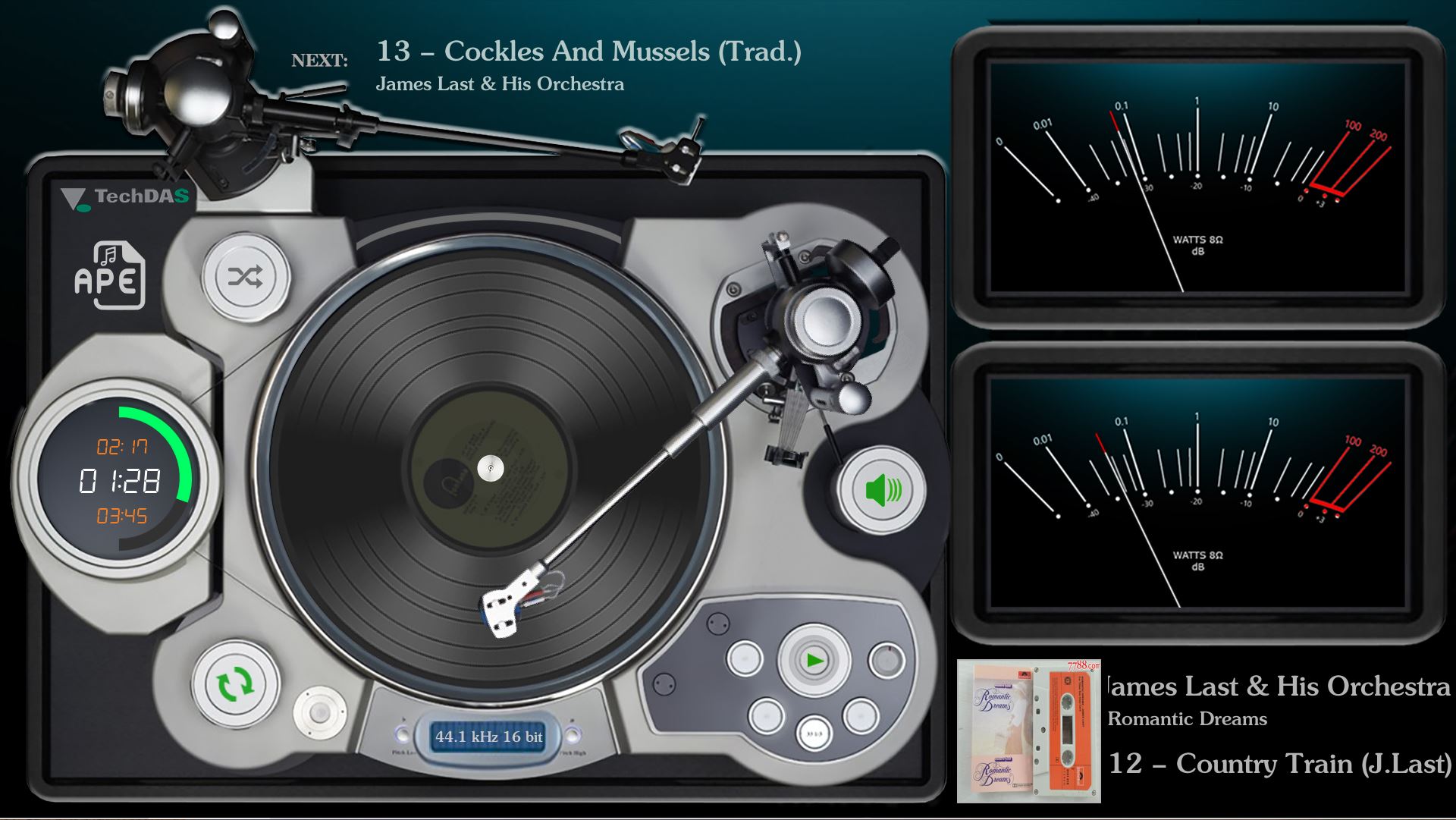
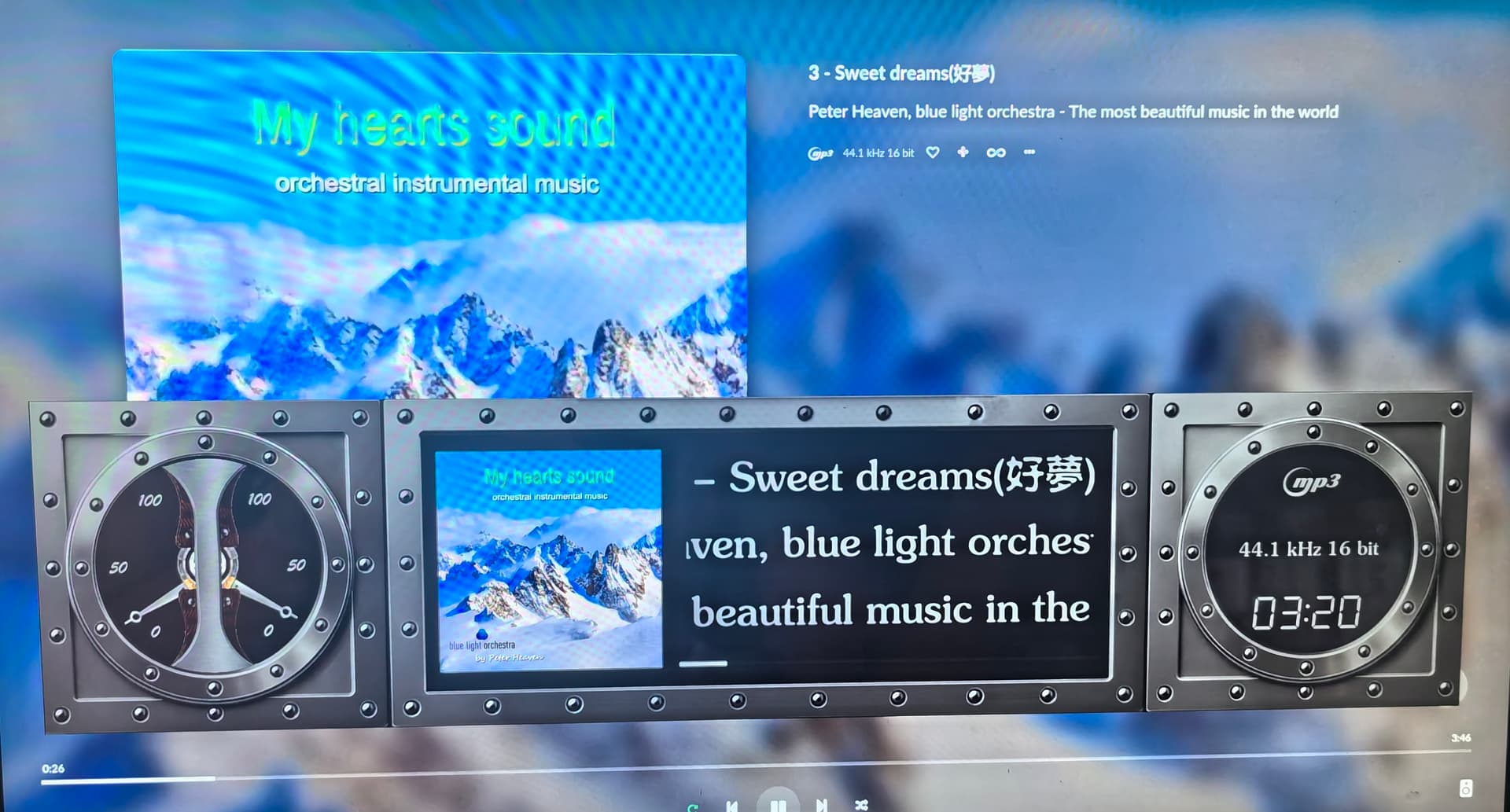
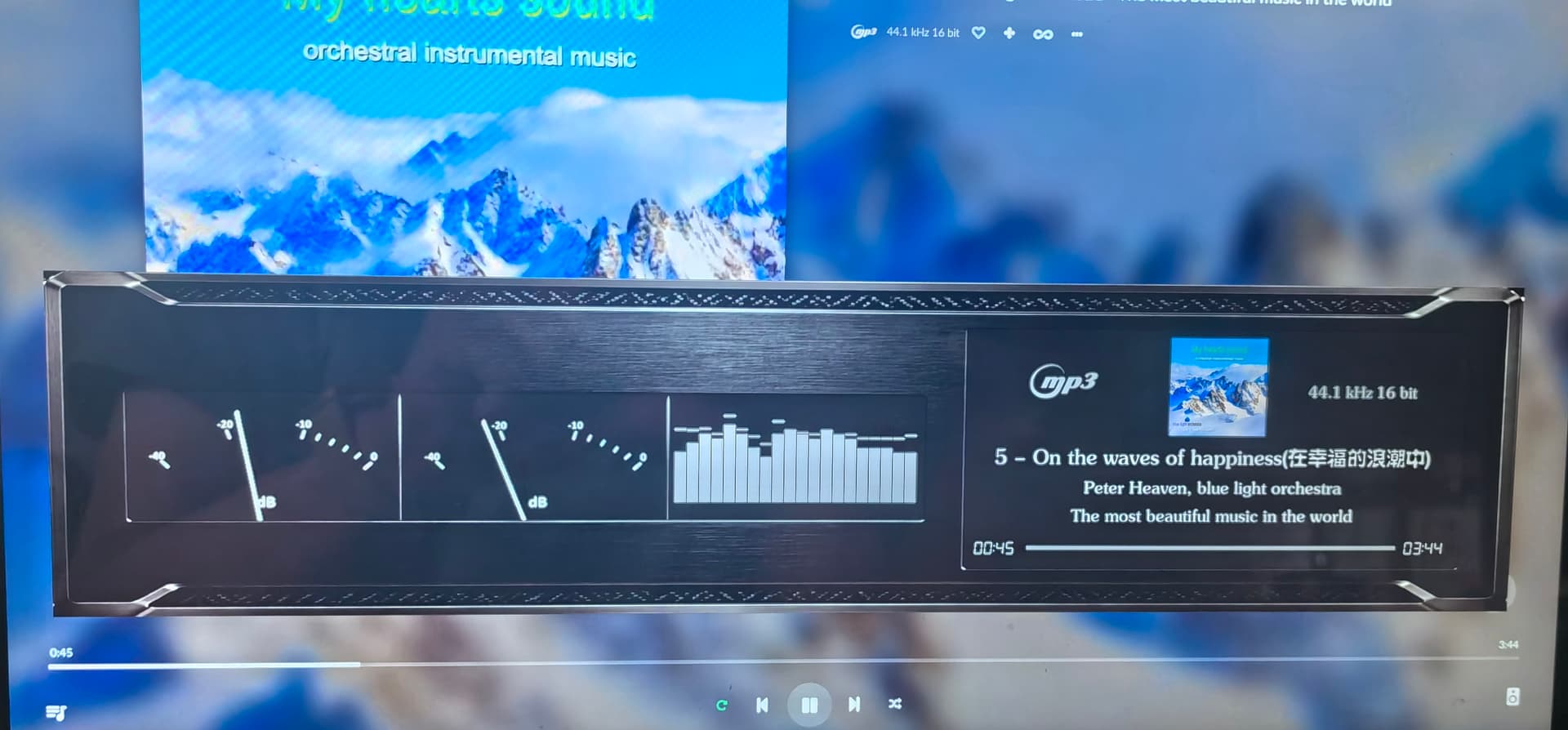
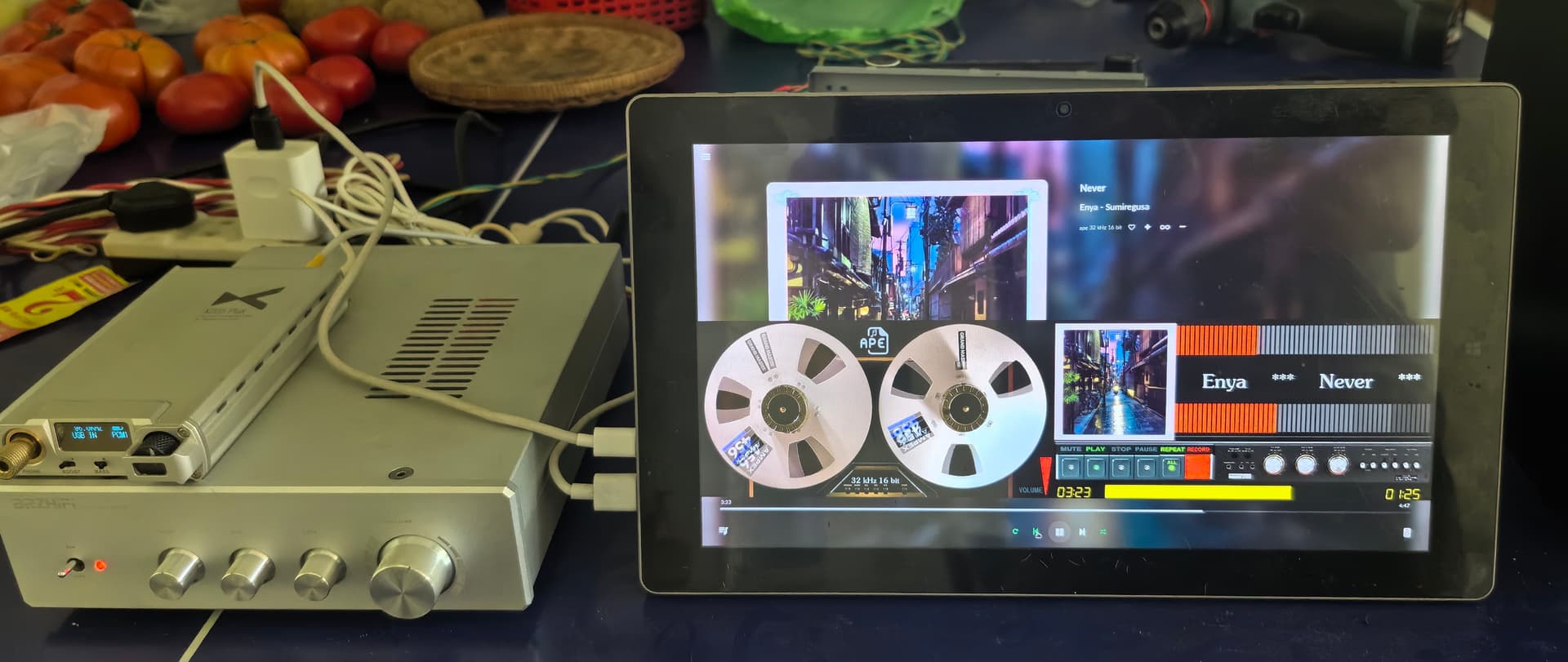
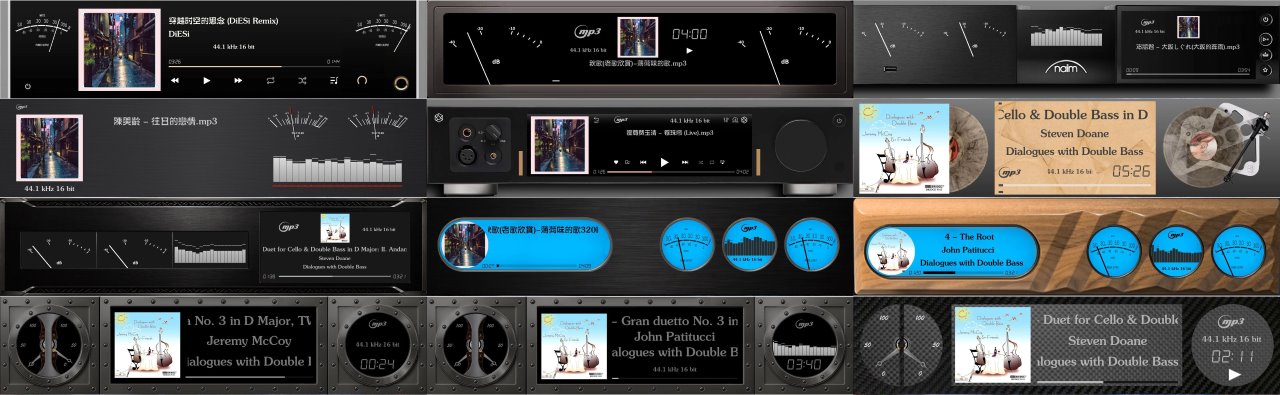
[Plugin] PeppyMeter/Spectrum Screensaver for VOLUMIO Bookworm

I just tested it, and it’s actually fixed now; I’m not sure which version update resolved the issue. I had spent a lot of time on this.

This is the version I modified back then; I wanted to use just a 180-degree progress bar and even experimented with different angles…

Just upgraded to peppy_remote 3.4.4; the curved progress bar has changed to a solid style, and the visual improvement is striking. Nerd is a perfectionist, too.

Hi @Lee.Yan,

Thank you again for the Pydroid work and the clear install notes - I’ve folded that into the official remote as a prototype on a feature branch (same peppy_remote.py as Linux/Windows; Android behaviour is gated so desktop installs stay unchanged).

Branch: feature/android-pydroid
Guide (start here): peppy_remote/android/INSTALL.md at feature/android-pydroid · foonerd/peppy_remote · GitHub

That guide now includes PC install commands (Step 0), then copy → pip → configure → run.

1) Install on Windows or Linux first

Linux:

curl -sSL https://raw.githubusercontent.com/foonerd/peppy_remote/feature/android-pydroid/install.sh \
  | bash -s -- --remote-branch feature/android-pydroid --screensaver-branch main

Windows:

irm https://raw.githubusercontent.com/foonerd/peppy_remote/feature/android-pydroid/install.ps1 -OutFile install.ps1
.\install.ps1 -RemoteBranch feature/android-pydroid -ScreensaverBranch main

Banner should show:

Remote files:  feature/android-pydroid (peppy_remote)
Handler files: main (peppy_screensaver)

(Use --screensaver-branch experimental / -ScreensaverBranch experimental only if your Volumio plugin is still on experimental.)

Optional: confirm the PC remote works against Volumio before copying to the tablet.

2) Copy to the tablet

From the PC install into:

  • Download/peppy_remote/peppy_remote.py, lib/, screensaver/
  • Download/templates/ and Download/templates_spectrum/

(Details and “do not copy” list are in the guide.)

3) Pydroid

  • Install Pydroid 3 + Pydroid repository plugin
  • Pip: packages from requirements-android.txt
  • Do not install pygame or cairosvg

4) Configure and run

Terminal:

python ./download/peppy_remote/peppy_remote.py --config

Use absolute template paths, e.g.:

/storage/emulated/0/Download/templates
/storage/emulated/0/Download/templates_spectrum

Then IDE → open peppy_remote.py → yellow Run.

If discovery fails: set server IP in config, or
python ./download/peppy_remote/peppy_remote.py --server <volumio_ip>

Feedback that helps most

  • Handler sync: OK / quiet fail / still needs skip?
  • Discovery vs fixed IP?
  • Version wait / mismatch UI?
  • Imports / paths vs your earlier layout?
  • Fullscreen / SCALED look?
  • Format icons without cairosvg?

Your name is credited in the docs and code. Thanks again - this path exists because you proved it works.

Kind Regards,
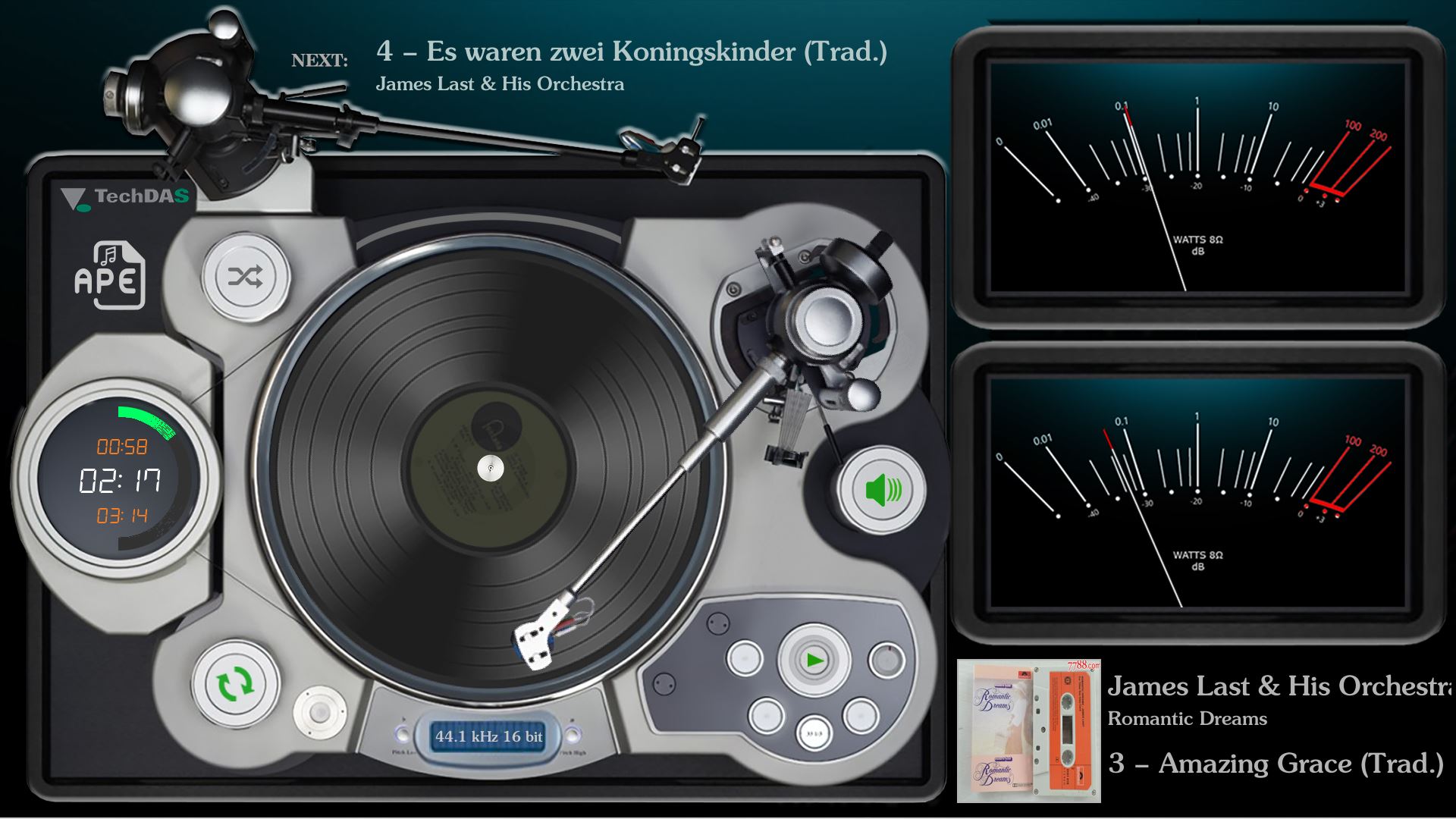
Hey @Lee.Yan,

Quick update on the Android path.

There is now a Get for Android tool on feature/android-pydroid that builds a tablet zip on the PC - no full desktop remote install required.

On the PC (Windows)

git clone --depth 1 -b feature/android-pydroid https://github.com/foonerd/peppy_remote.git
cd peppy_remote
powershell -ExecutionPolicy Bypass -File .\android\get-android.ps1 -Yes

Optional - include skins in the zip:

.\android\get-android.ps1 -Yes `
  -TemplatesPath "C:\path\to\templates" `
  -SpectrumTemplatesPath "C:\path\to\templates_spectrum"

That should create peppy_remote_for_tablet.zip on the Desktop.

Guide: peppy_remote/android/INSTALL.md at feature/android-pydroid · foonerd/peppy_remote · GitHub

On the tablet

  1. Copy the zip into Download, unzip → peppy_remote/, templates/, templates_spectrum/.
  2. Follow peppy_remote/START_HERE.txt (Pydroid 3 + Repository + Permissions; Pip with prebuilt repo; no pygame / no cairosvg).
  3. If templates were empty, copy skins into those folders.
  4. --config with absolute paths, then run peppy_remote.py from Pydroid’s file UI.

Same as before: plugin + remote same version (e.g. 3.4.4), Remote Display Server on, same Wi‑Fi.

Feedback that would help

  • Did get-android.ps1 -Yes produce a usable zip?
  • Was START_HERE.txt clear?
  • Config / run / meters / discovery (or --server <ip>)
  • Sync behaviour, version UI, SCALED look, format icons without cairosvg
  • Anything that would confuse a non-expert install

Device + Android version still useful if anything fails.

Kind Regards,

Your efficiency is astonishing; there is a Chinese idiom for this: “swift and vigorous action.”

I’ve tried out the ‘adaptive spool speeds’, and I honestly never expected such a profound attention to detail.

1 Like

Under what circumstances is the discovery_sniffer.py diagnostic tool used?

@nerd

Hey @Lee.Yan,

Only for diagnostics when discovery looks wrong (for example a “phantom” server, or you need to see every UDP packet on port 5579).

It binds the same discovery port as peppy_remote, logs each packet (source IP/port + payload), and marks anything from local IPs as LOCAL. Typical use: run it on Windows while Volumio is broadcasting to check whether the PC itself is emitting packets.

Normal install / Android / Get for Android: you do not need it. Stop peppy_remote first if you run it (only one process can bind 5579).

python discovery_sniffer.py
python discovery_sniffer.py --port 5579 --duration 30

Kind Regards,

I only see the first six themes in the repository; are the others not finished yet? They look really great!
@Gelo5

I think you’re talking about @Wheaten ?
Some of it is in Spectrum

Browse all templates, click here.

Thanks!


I’ve merged the 1920x440 theme to make it more convenient to use.
1920x440.zip (11.1 KB)

Minimalist Elegance!极简致雅

All devices have been updated to 3.4.4: the notebook (Peppy_screensaver & Peppy_Remote; dual-boot Volumio & Win11) and the mobile phone (Android).

1 Like

The meters.txt file for the “1920x440_Titanium_Black” is incomplete; the spectrum is missing.

An extra spectrum.pos = 800,106 entry has appeared in the meters.txt file for the “Naim_NSS-333” repository, causing abnormal visual overlapping during rendering in peppy_remote.

I have already fixed this on my end. Both 1920x440_Titanium_Black & 1920x440_Naim_NSS-333
https://community.volumio.com/uploads/default/original/3X/5/5/5510404d709d9b9036b2320b16202c3ca66089e6.jpeg

@Lee.Yan

Thanks for reporting.
Indeed something went wrong with the uploaded meters.txt from Titanium_Black.
I’ve recreated the upload, with the corrected meters.txt.

Removed line spectrum.pos = 800,106 from the Naim template

I’ve consolidated them—do you think this is suitable? Duplicate files have been merged.
1920x440_Alumin_01.zip (5.4 MB)

Plugin Settings → Browse Theme Preview

In Plugin Settings → Browse Theme, I’ve updated the preview image in the template, but “PlugIN Settings → Browse Theme” remains unchanged (even after restarting Volumio). The only change I see is when I rename the corresponding Theme folder within the template. I’ve searched the entire Peppy_screensaver folder but couldn’t find the preview image displayed under “PlugIN Settings → Browse Theme,” suggesting the image is cached in an unknown location.

The preview image in theme-gallery has been updated, but the old image is still displayed.

I changed preview.png to preview.jpg, and it finally displayed correctly.

@nerd

Hey @Lee.Yan,

You were right - Browse Theme is not reading preview.png from the theme folder live.

Volumio can only serve gallery images from the plugin tree, so we copy each preview to:

/data/plugins/user_interface/peppy_screensaver/theme-gallery/

The file is named after the theme folder, not preview.png - e.g. 1280x720_MySkin.png. That is why a search of the plugin folder for the original preview comes up empty.

Two caches then keep the old picture:

  1. That copy is reused if we think the source has not changed.
  2. The browser URL stays the same, and Volumio’s albumart handler caches it for about 30 days. A Volumio restart does not clear that.

Renaming the theme folder, or switching preview.pngpreview.jpg, created a new cache file and a new URL, so the new image appeared.

On the current release, after you replace a preview:

rm /data/plugins/user_interface/peppy_screensaver/theme-gallery/<ThemeFolder>.png

Use .jpg / .jpeg if that is what the gallery copied. Then hard-refresh the browser (Ctrl+F5), or close the tab and reopen Browse Theme.

On experimental, that workaround should no longer be needed. Replacing preview.png in the theme folder and opening Browse Theme again recopies when size or timestamp changes, and the image URL includes a version token so the browser fetches the new file. Leftover {folder}.png after a switch to .jpg is removed as well.

No restart, no rename. If you can try experimental and confirm, that would be appreciated.

Kind Regards,

I’ve noticed everything you mentioned. I added preview.png to the /data/Internal Storage\peppy_screensaver\templates<theme folder>. Preview.png displays when I change the theme name. This is my confusion.

I deleted theme-gallery/.png, but it didn’t work. Also, the newly generated theme-gallery/.png is correct, but it doesn’t display.

Is the theme page also a URL page?

Hey @Lee.Yan,

This is what you did:

This is what I instructed you to do:

Which clearly is showing mechanism of changing image data type from png to jpg.

You choose to replace png - which is entirely your call. Works as designed.

Kind Regards,

Yes, it displayed correctly after I used preview.jpg.