Hey again @nerd !
It’ something like that I’m looking for…
Best Regards / C
Hey @ClaesM,
Not before I take Bookworm over finish line with OEM and community ports.
Kind Regards,
I understand. You also give me some hope. Thanks!
Best Regards / C
Not to be the wise guy, but don’t we already have a plugin for CPU governor on Buster. Not sure if there are problems to port it to BW?
I have seen Music Services Shield but have not tested it on Volumio 4.xxx.
It may work but it lacks some features such as overclocking, possibility to turn off unnecessary features and processes for music playback. For example, I do not use hdmi, some of the usb ports etc etc
I don´t know if it could be done but maybe it’s worth thinking about.
Best Regards / C
Can the advanced section be used/adjusted to help with el cheapo USB key boot/reboot for Pi4’s?
Definitely one of my “must have” plugins!
Great work !
Hi @nerd, excuse my ignorance, but I don’t really understand what this plugin does or whether it improves hardware. I installed and activated it with default settings, but I haven’t noticed any changes. Perhaps the only thing I’ve noticed is that startup is a little slower. I hope for a better explanation, because unfortunately, I have my limits on these topics. Thanks, and have a nice day.
Hi @calogero69
I used it the updater to prepare my Pi for NVMe boot and the config manager to change the boot order to match my new set-up. The two EEPROM plugins work very well and my Pi5 is now a rocket!
Hi @SimonE, could you tell me how you configured the plugin? Maybe with some screenshots. Thanks.
The EEPROM Configuration Manager was born out of a community wish: booting Volumio from USB.
This had never been possible, until @nerd made it happen. The catch? You had to wrestle with Raspbian and manually tweak the bootloader, which wasn’t exactly plug-and-play.
Now, thanks to the plugin, it’s just one click and done.
For the tinkerers among us, extra configurable options have been added.
Not your thing? No worries, just leave everything at default.
Because if you’re not sure what you’re doing, you might end up bricking your Pi.
The warning is there for a reason 
That’s exactly why I only used the config to change the boot order! The rest is way beyond my payscale.
@Frumento, thanks for the reply. Let’s see if I understand. I installed the operating system on MVME memory and Raspberry Pi 5 using Balena Etcher, with the latest version of Volumeio, and everything works perfectly. Then I looked at this plugin and installed it, but I didn’t see any difference. So where am I going wrong? What should I do for a faster boot? Thanks.
Not much,
Make sure you have the latest bootloader (see Plugin Raspberry Pi EEPROM Firmware)
Make sure you have your boot order set to start with NVMe.
Maybe the Boss @nerd has some tweaks up his sleeve.
Hey calogero69,
Let me explain what these plugins do and clarify an important point about your installation.
Two separate plugins:
There are two different EEPROM plugins that work together:
Raspberry Pi EEPROM Firmware Updater
Raspberry Pi EEPROM Configuration Manager (the one you installed)
Why you see no changes:
The plugin does not automatically change anything - it gives you control to change settings when needed. You installed it but have not changed any configuration yet, so everything remains at default.
Important - your installation method:
You mentioned using Balena Etcher to flash Volumio directly to NVMe. This works, but it is not optimal. When you flash the SD card image directly to NVMe, you get:
Recommended: Use Volumio’s built-in “Install to Disk” tool instead:
What the EEPROM config plugin is for:
Originally created to enable USB/NVMe booting (which was impossible before). Now it lets you:
When you would use it:
For your situation:
The warning is real:
The plugin warns about “bricking” because incorrect settings can prevent your Pi from booting. If you are not sure what a setting does, leave it at default.
About slower startup:
If startup is slower after installing the plugin, check if any settings were accidentally changed. The plugin itself should not slow down boot.
Questions?
Kind Regards,
Hi @nerd, thanks, it’s clearer now. I was worried that the installation I was doing was the same as the one on the SD card, and that’s why I didn’t notice any difference. Now I’ll try installing to disk and then configuring the plugin parameters. Thanks.
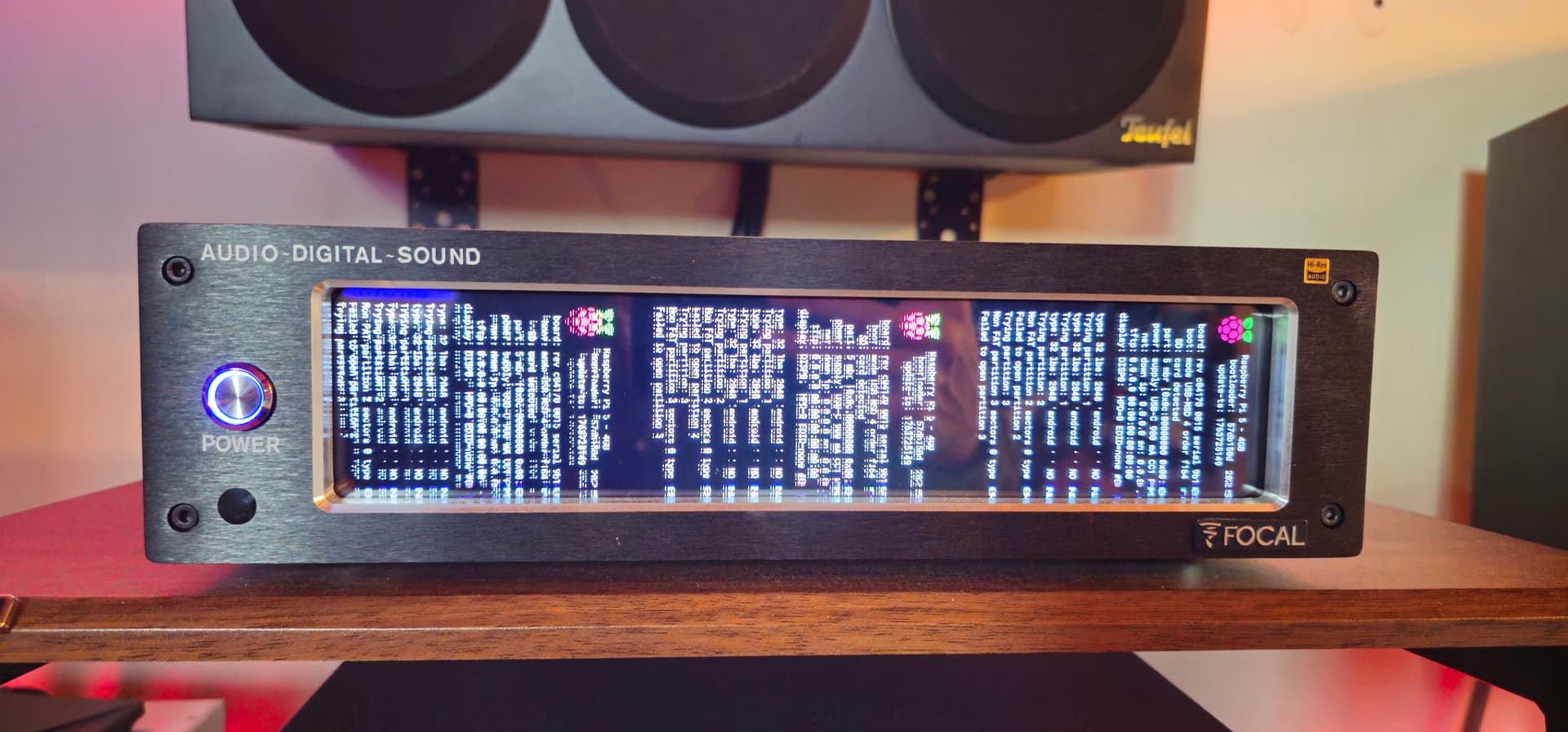
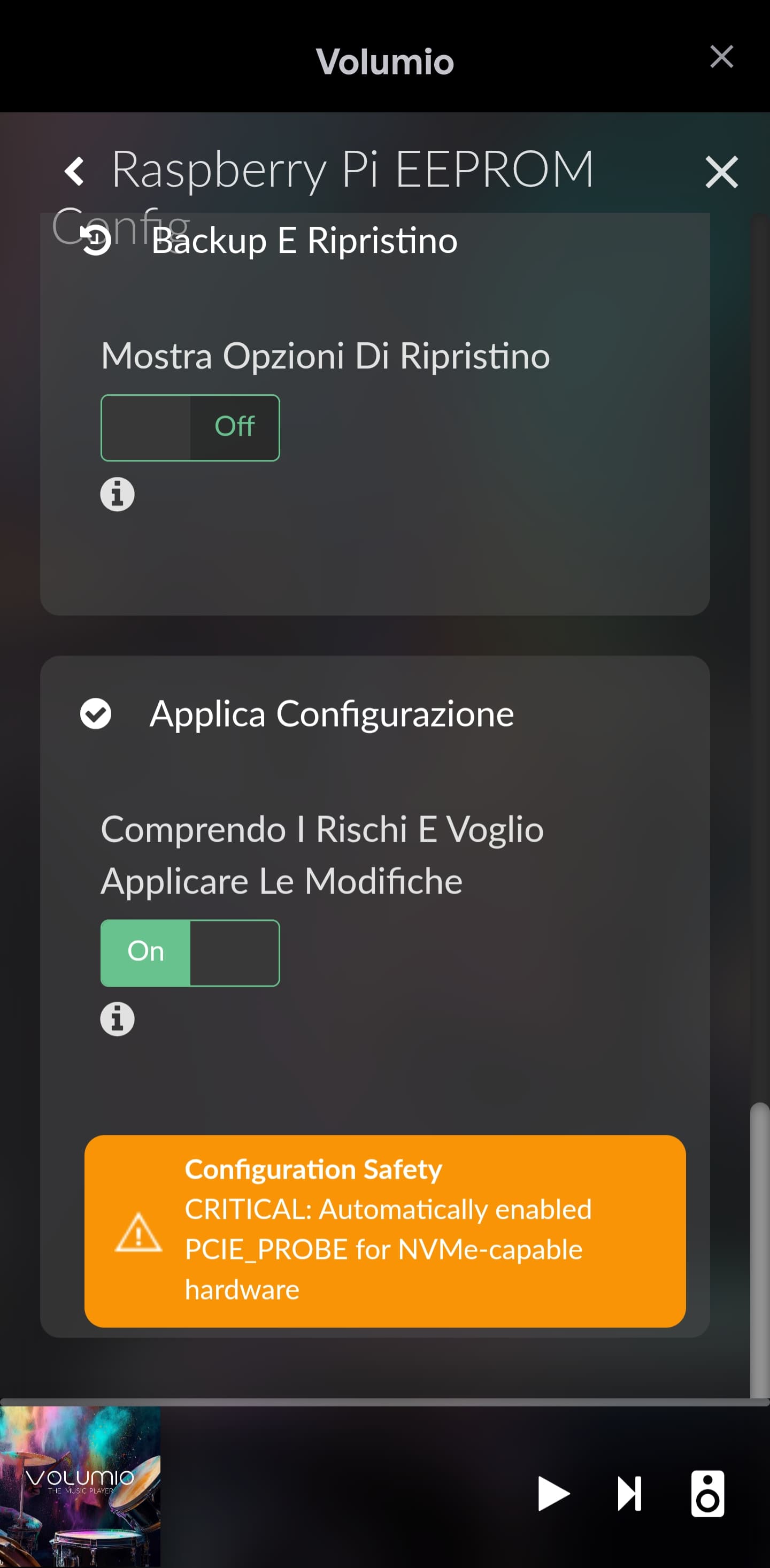
Hi @nerd, I followed the hard drive migration procedure, installed the two configuration plugins, and set up nvme-usb-sd boot. But now I’ve noticed some problems that I don’t know how to fix and I don’t know what I did wrong. I reinstalled everything and the boot process remained the same. After the new installation, I removed the SD card, but nothing changed. I’ll post two screenshots. Thanks!
Hi @calogero69,
I need you to clarify what specific problem you are experiencing. Your screenshots and description do not show what the actual issue is.
Please answer these questions:
Does your Pi 5 boot successfully from NVMe?
Does Volumio start and show the web interface?
What exactly is the problem you are seeing?
What did you expect to happen when you removed the SD card?
Important clarification:
The EEPROM Configuration plugin only configures the bootloader (boot order, power settings, USB parameters, etc.). It does NOT configure Volumio itself.
If your problem is about:
Then this has NOTHING to do with EEPROM configuration. Those are standard Volumio setup tasks after any fresh install.
The EEPROM plugin is ONLY for:
Please describe your specific problem so I can help properly.
Kind Regards,
Hi @nerd, so I’ll answer your questions. Volumeio boots perfectly from NVMe memory without an SD card. The second question: Volumeio boots and displays an interface with lots of text, as seen in the first screenshot. This seems like a problem to me because I’d never seen this screen before. Volumeio then boots perfectly and there are no other problems and everything works correctly. The other thing that seems like a problem to me is that when I go to the plugin settings, at the end to confirm the settings, I get a message like the one shown in the second screenshot. Is this message normal? I hope I explained myself clearly because my English with the translator is not very good. Thanks always.
Your first issue:
Volumio V4, detect your screen and shows the boot info. So this is good news.
You need to install the Touch Display plugin, to get the Volumio UI on your screen.