As I understand, Volumio on Raspberry Pi is like a customized version of the Pi OS. I also assume it doesn’t consume a lot of storage. In my case, I used a 128 GB microSD card for the install, since I had a few lying around.
Is there a way that I can access the free space in the card in the Pi itself, or would I need to shut down the machine, take out the card, put it in my PC and use it to copy music files and folders?
While there’s no chance my entire music collection would fit in whatever is left in that 128 GB card after the Volumio install, I bet I can still fit a lot of albums.
Basically what I’m asking is, does Volumio OS has a Raspberry Pi OS GUI underneath that I can access to be able to see the card, then create an SMB share that I can access from Windows and copy over the music files, which then can be read from Volumio.
I connected the external SSD where I keep all the files, and Volumio sees them just fine, but it’s a large SSD that I keep as a media server drive, and Volumio only does music, so unless I can run a DLNA server from the Pi, that doesn’t work out for me very well.
So here’s a weird thing. The card has three partitions, of which the first one can be accessed in Windows, and it seems to have the Volumio OS. The other two, one just 3.99 GB and the other one being 113.40 GB (this is the one that matters to me), are partitions, but strangely enough, cannot be accessed at all, in fact I can’t even assign a letter in Windows to mount it:
All I can do is delete the volume, but I’m not sure if that wouldn’t mess with Volumio, does anyone here know that?
Also, I don’t mind copying directly to the card the first time, but as I update my music library (the digital one that consists mostly of albums I buy on Qobuz), I would prefer to have that 113.40 GB partition as an SMB share that I can see from Windows.
Volumio is not a customised Raspberry Pi OS. It is a purpose-built system with a fundamentally different disk architecture. This is why you see things in Windows that look strange.
Your 128GB card has three partitions on an MBR (msdos) partition table:
Partition 1 (boot) - FAT32, 384MB. Contains the kernel, device tree files, and boot configuration (config.txt, cmdline.txt, userconfig.txt). This is the only partition Windows can read natively because it is FAT32. It is NOT “the Volumio OS” - it is just the bootloader stage.
Partition 2 (imgpart) - ext4, approximately 4.2GB. This is the 3.99GB partition you see in Windows Disk Management. It holds the Volumio system image as a compressed squashfs file (volumio_current.sqsh). Think of squashfs as a read-only snapshot of the entire operating system packed into a single file. Windows cannot mount this partition because it is ext4.
Partition 3 (volumio_data) - ext4, everything else. On first boot, Volumio automatically resizes this partition to fill the remaining space on the card. On your 128GB card, this is the 113.40GB partition you see in Windows Disk Management. Windows cannot mount it because it is ext4. Do NOT delete this volume - it is where all your persistent data lives.
How these three work together at boot:
The Pi loads the kernel from partition 1 (FAT32 boot)
The kernel mounts partition 2 and finds the squashfs image file
The squashfs image is mounted read-only as the base operating system
An overlayfs layer is created on top, using partition 3 for all writes
OverlayFS is the key concept. It merges two layers into one view: the read-only squashfs (lower layer) and a read-write directory on partition 3 (upper layer). When the system reads a file, it looks in the upper layer first. If not found, it falls through to the squashfs. When the system writes a file, it goes to the upper layer only. The squashfs is never modified.
This architecture is what makes OTA updates possible. A new update replaces the squashfs file. The upper layer preserves your settings, plugins, and data across updates. It also reduces SD card wear because the base OS is never written to.
There is no Raspberry Pi OS GUI underneath. No desktop. No file manager. Volumio is headless by design. The HDMI output you see on your Onkyo is Volumio’s own display interface, not a Linux desktop.
Now - the part that actually answers your question:
Volumio already exposes your internal storage as a network share. The path /data/INTERNAL on partition 3 is shared via Samba (SMB) automatically.
From Windows:
Open File Explorer
In the address bar type: \\volumio (or \\<your_volumio_IP>)
Once files are there, go to Volumio’s UI - Settings - Sources - and rescan your music library. The internal storage content will appear under “Music Library” in Browse.
You do not need to remove the card. You do not need to create any share manually. You do not need SSH or any Linux knowledge. Just use the existing network share.
As @SimonE correctly pointed out - /data/INTERNAL is where your music goes. The network share is just the convenient way to get it there from another computer.
You truly do justice to your name. Excellent explanation. Now, I’m an old fart so I can’t remember what I did last week. When I setup Volumio, did I have to set a user name and password like when you setup Raspberry Pi OS or any other OS? Because to access the volumio server, it’s asking me for credentials, which I have no idea what they are. But somehow I kind of remember I didn’t have to set a user name and password.
Appreciated. And “old fart” - an increasingly worrying observation with ageing is that farts, much like entropy, become less controllable over time. The second law of thermodynamics applies to all closed systems, including digestive ones. This is not a bug. It is physics. Volumio unrelated.
You did not set any credentials during setup. Volumio does not have a setup wizard that asks for username and password.
The default credentials for everything are:
Username: volumio
Password: volumio
This applies to the Samba share, SSH, and any other access that asks for credentials.
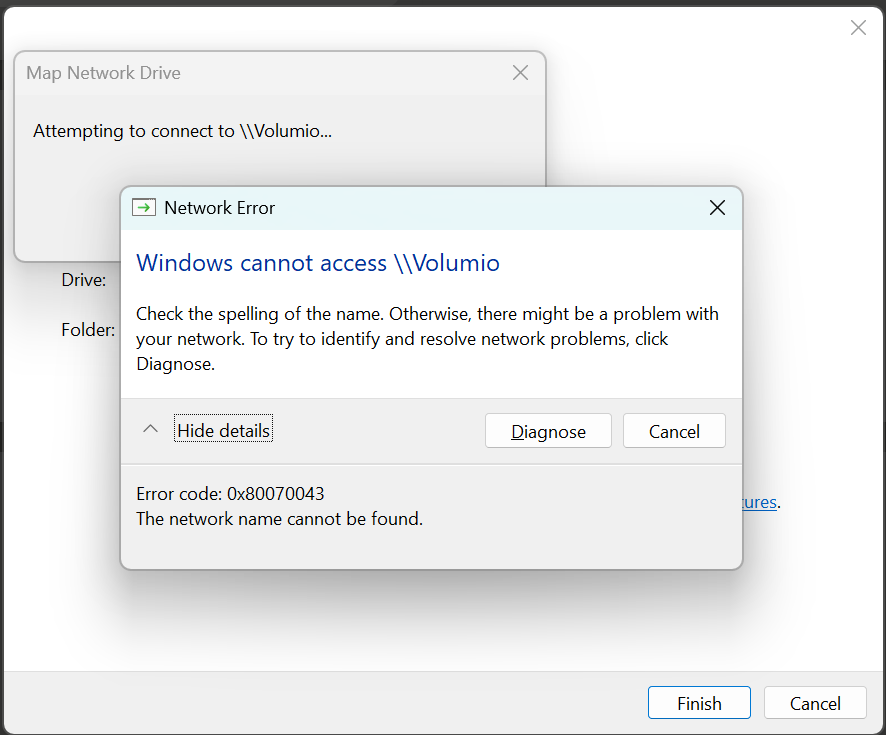
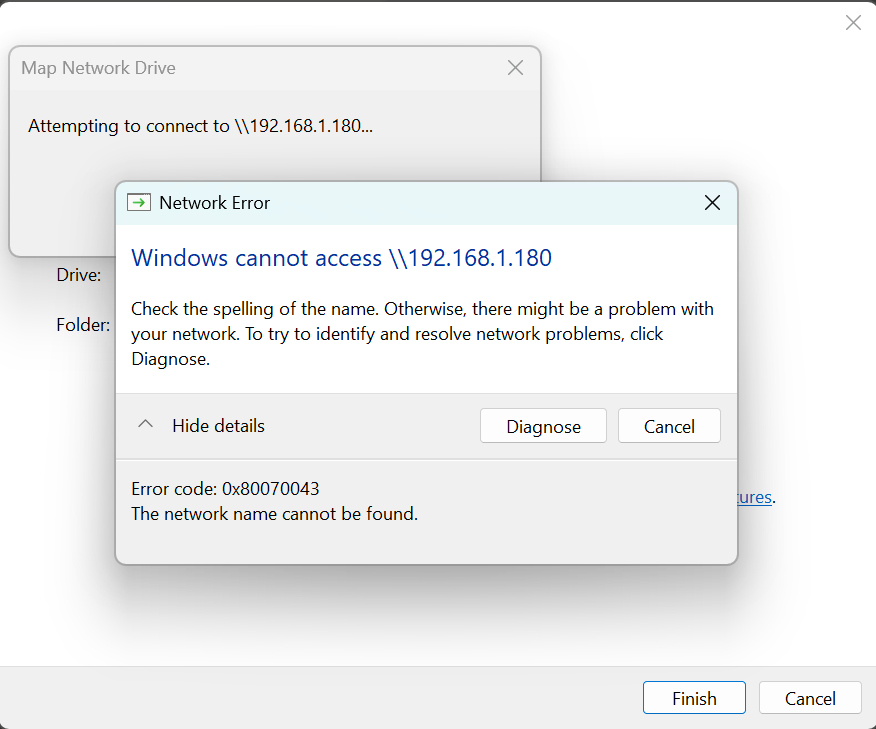
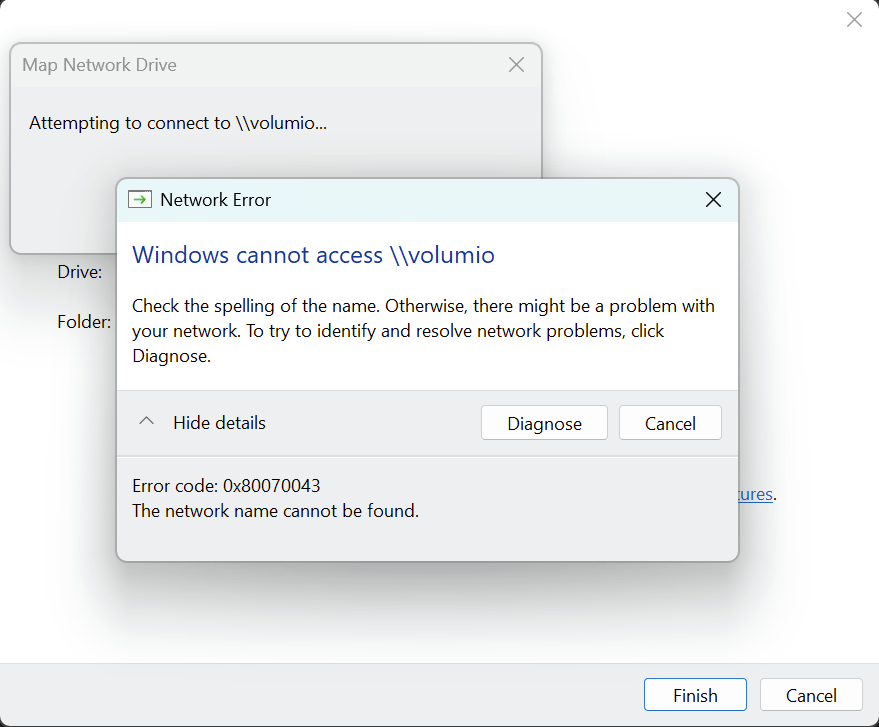
As you can see, either by \Volumio or the IP address, same thing. I know that Volumio is up and running because I can access it through the browser just fine.
But well, I could simply flash the card again, it doesn’t take long to get it up and running.
Well, I ordered a 256 GB card that I should be getting any moment now. Once I have it, I’ll do a new Volumio install to that card and try to mount that share like Nerd said. If that doesn’t work, I may give Filezilla a try.
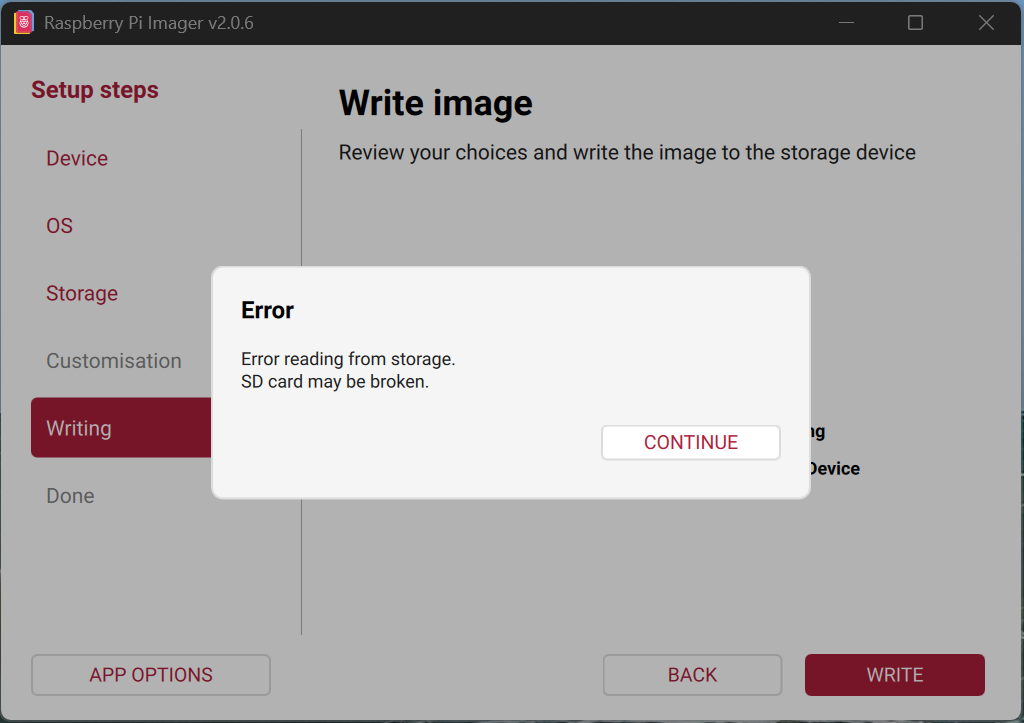
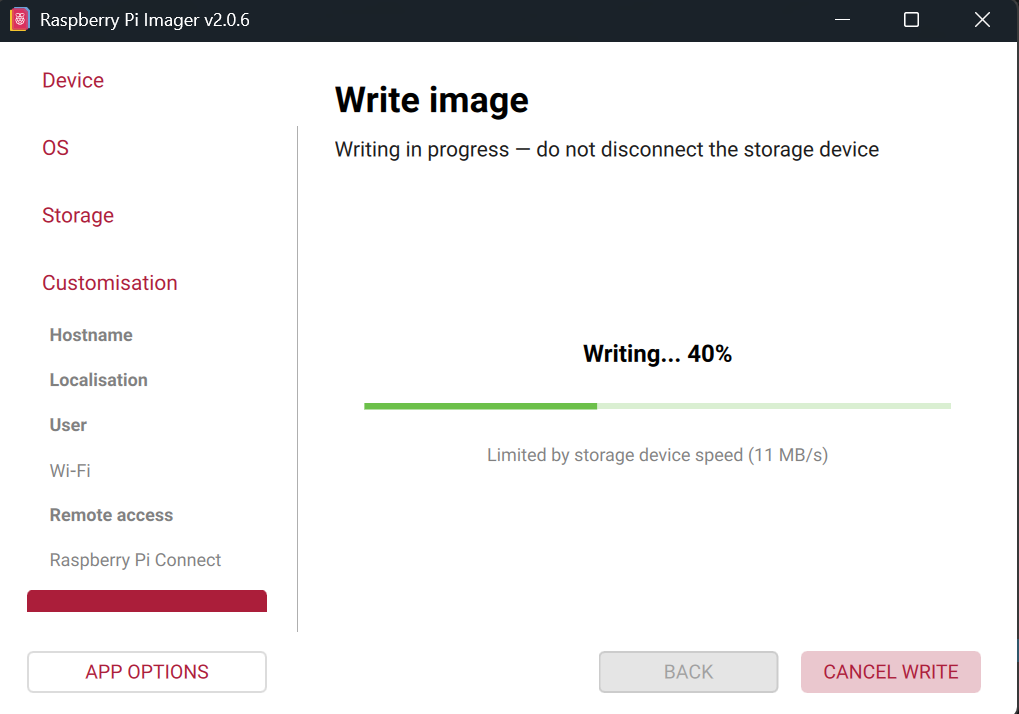
I downloaded the current Volumio image again, unzipped it and checked the MD5 sum, which was identical. But even now, trying to flash the Raspberry Pi OS just to see if it happens with it too, it shows me a really slow speed:
So the card could be defective, but it would be the first card in 20 years of buying SD cards of different types that one is defective from the start. Is there some kind of restriction on the card size for Volumio OS?
Well, I was able to flash the card successfully with Balena Etcher, and Volumio boots just fine in the Raspberry Pi. But the result is the same as before:
Are you guys sure that I don’t have to do something else to enable that SMB share from the Volumio OS itself? Maybe login into it in the CLI and type something, or sudo nano some config file, etc, etc, like when you first install Raspberry Pi, you need to do a series of commands to enable SMB sharing.
FYI, I’m not new at mounting shares. I have another PC and a Mac Studio, all of which I mounted on my main PC just fine. I’m not saying I’m a network engineer, but I have three decades of computer experience, so this tells me that there is no SMB share currently in the Pi machine.
Do not reflash. The share exists. The problem is almost certainly on the Windows side.
This is one of the reasons I have not used Windows since 1984. To be clear - Windows 1.0 was released in 1985, which means I rejected it before it existed. That is how far ahead of the curve I am. Or behind it. Depends which direction you consider forward. My entire outdoor experience consists of occasionally checking if the green grass and blue sky on the Windows desktop has changed. I have a working theory that it is a static picture, but without logs I cannot confirm this.
First - to confirm the share is actually running, I need the following from you:
Your exact Windows version. Open Settings - System - About and tell me the full version string including the build number (example: Windows 11 Pro 24H2, build 26100.xxxx).
Are the Volumio Pi and your Windows PC on the same network subnet? What is the IP address of your Windows PC and what is the IP address of your Volumio? (You can get your Windows IP from a command prompt: ipconfig)
From a Windows command prompt (not PowerShell), run the following and paste the full output:
net view \\volumio
If that gives an error, also try:
net view \\<your_volumio_IP>
Also from command prompt:
ping volumio
This tells me whether Windows can resolve the hostname at all.
Why I suspect Windows and not Volumio:
You said your other shares (other PC, Mac Studio) all mount fine. Those shares almost certainly use authenticated access with a username and password. Volumio’s Samba shares use guest access by default. Microsoft has been progressively disabling insecure guest logons in Windows since build 1709 (2017), and Windows 11 24H2 tightened this further by requiring SMB signing, which is incompatible with guest authentication.
The symptom you describe - can see the device, cannot access the share, credential prompt appears but nothing works - is the textbook presentation of this Windows security policy blocking guest SMB access.
The fix depends on your Windows version, which is why I need that build number first. But the quick test right now is: when that credential dialog appears, enter username volumio and password volumio and see if it connects. If it does, the share was always there - Windows was just refusing the guest path.
Do not touch the registry, do not edit group policies, and do not make any Windows security changes until we confirm what is actually happening.
I can always count on you for laughing out loud, and my life is not great, so that’s really appreciated.
Edition
Windows 11 Pro
Version
25H2
Installed on
1/9/2025
OS build
26200.7840
Experience
Windows Feature Experience Pack 1000.26100.291.0
As far as Windows Update goes, I’m up to date, only showing me the choice to install the 2026-02 Preview Update, which no way José, because “Preview” is Microsoft lingo for “Buggy Beta”
Well, here’s how it goes. There’s the AT&T Fiber modem, which is set to only be a modem, not a router, and that’s the reason why all my LAN IPs are 192.168.1.x and not the usual 192.168.0.x. From the modem the internet goes to my router traveling on a short ethernet cable, a TP-Link BE9300. The four ethernet ports in it are used by four things, this PC, my Mac Studio, a Raspberry Pi 3 B+ that I use only for Pi-Hole, and the last cable goes to a TP-Link TL-SG116 switch, which has 16 ports and feeds a lot of other entertainment devices, including the Raspberry Pi 4B that has Volumio.
This switch never gave me any problems, it really acts as if all those devices were connected to the router itself. You probably can tell me if that could be the problem, but if it is, then the problem doesn’t have a solution because the router needs the ethernet ports as they are.
However, I don’t have a problem mounting shares on my PC from other machines that I connect temporarily to the switch if I need to, or even using Wi-Fi for an old PC in another room.
The PC’s IP is 192.168.1.30 and the Volumio one is 192.168.1.180
The response to both is:
System error 53 has occurred.
The network path was not found.
Pinging volumio.local [192.168.1.180] with 32 bytes of data:
Reply from 192.168.1.180: bytes=32 time<1ms TTL=64
Reply from 192.168.1.180: bytes=32 time<1ms TTL=64
Reply from 192.168.1.180: bytes=32 time<1ms TTL=64
Reply from 192.168.1.180: bytes=32 time<1ms TTL=64

Ping statistics for 192.168.1.180:
    Packets: Sent = 4, Received = 4, Lost = 0 (0% loss),
Approximate round trip times in milli-seconds:
    Minimum = 0ms, Maximum = 0ms, Average = 0ms
But if you need to type a username and password, isn’t that authenticated access rather than guest?
Oh, I wasn’t planning on any of that, unless you specifically tell me what to do. I have changed things in the registry dozens of times since Windows 95 was released, but I hate going in there unless I absolutely have to.
I hope I answered all your questions, and thanks so much again for your help with this!
Well, the problem is that the Rasperry Pi Imager was failing every time, so I gave the Balena Etcher a try not even thinking it was going to work. But it did, and Volumio boots up and works fine, so I’m guessing it has something to do with the extra speed and connectors in the card itself.
Even if it’s not faster (and Crystalmark benchmarks tell me it’s about 10 MB/s slower), my main interest is the capacity, so I can fit my current digital library and leave some space for future purchases and CD rips.
It couldn’t hurt to yank the power plug on your switch. I’ve got the TP‑Link TL‑SG108, and every now and then it forgets its entire reason for existing. One minute it’s a humble network switch, the next it’s having a full‑blown identity crisis and genuinely believes it’s mounted in the grille of the Knight Rider car, ready to blast down the highway at 200 km/h instead of, you know… switching packets.
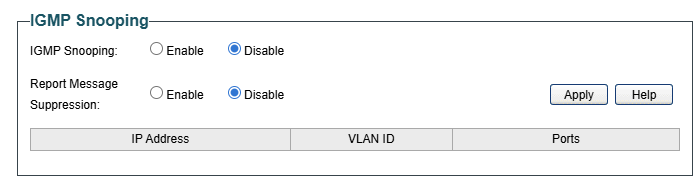
And you might try to turn of IGMP snooping. This has caused issues within my network in cobination with Volumio.