Confirmed to work on a Dell Wise 3040 and a pair of Ikea Vappeby 3 Gen speakers with a generic mini bt 5.3 dongle 
1 Like
Update: Bluetooth and experimental AirPlay output
A fairly substantial update is now available for Wireless Output Manager. The existing preview branch now includes both Bluetooth output and experimental AirPlay output, with separate settings views to keep the two workflows clear.
The workflow has evolved considerably during testing, particularly around safely moving between the default output and wireless devices.
Bluetooth
Bluetooth output supports manual connection and routing to speakers, headphones and earbuds. Tested devices include:
- JBL PartyBox 100
- JBL Clip 3
- Soundcore P31i
- Yamaha YH-E700A
- KEF Porsche Design Space One Wireless
- Sony WF-1000XM4
- Beats Fit Pro
- Shokz OpenRun
- AirPods Pro
Available codecs depend on both the receiving device and Volumio’s installed BlueALSA build. SBC, LDAC, standard aptX and aptX HD have been tested. AAC and aptX Adaptive are not currently available.
AirPlay
Experimental AirPlay output has been tested with:
- Mac Mini (M2 Pro)
- HomePod 1st Generation (A1639)
 (not a stereo pair yet)
 - Apple TV 3rd Gen (A1469)
- Apple TV HD (A1625)
- Raspberry Pi 4 Model B Rev 1.1 running Volumio 4.119
- Raspberry Pi 5 Model B Rev 1.0 running Volumio 4.119
Apple TV PIN pairing is supported for both newer and selected older models.
The installer automatically detects Raspberry Pi 4, Raspberry Pi 5 or x86-64 Volumio systems and downloads only the matching, checksum-verified AirPlay sender. Internet access is therefore required during installation.
AirPlay is buffered, so it is not instant. Pause and resume commonly take around three seconds, while some track changes can take approximately nine or ten seconds.
Manual switching
Routing remains deliberately manual. Before changing to another wireless device, select Return to default audio output, wait for the change to complete, then select the new destination. Playback stops during routing changes and must be started again afterwards.
There is no automatic fallback if a Bluetooth or AirPlay receiver becomes unavailable. This is intentional and avoids Volumio unexpectedly choosing another output.
Please be careful with volume
Wireless playback can involve three separate volume levels:
- Volumio software volume
- Bluetooth stream volume or AirPlay sender volume
- The receiving device’s own volume
Start low and keep headphones off your head until routing and volume have been confirmed. Bluetooth begins with a guarded stream level, but receivers may remember their own previous setting.
Hardware compatibility
The same installation commands are used on every supported system. During installation, the plugin detects whether Volumio is running on a Raspberry Pi 4, Raspberry Pi 5 or x86-64 computer, then downloads and verifies the appropriate AirPlay sender automatically. No hardware-specific installation choices are required.
The plugin does not currently update itself in place. Existing users should return to the default audio output, uninstall the previous version, then install the new version using the instructions below.
New installation
Connect to your Volumio device by SSH and run:
WORKDIR=$(mktemp -d /tmp/wom-install-XXXXXX)

git clone \
  --branch feat/wireless-output-codecs \
  --single-branch \
  https://github.com/jhscann/volumio-plugins-sources-bookworm.git \
  "$WORKDIR/source"

cd "$WORKDIR/source/wireless_output_manager"
volumio plugin install
Accept the warning for an unverified plugin, then enable Wireless Output Manager from the Plugins page.
Updating an existing installation
First open Wireless Output Manager and select Return to default audio output. Wait for the change to complete, then uninstall the existing plugin from the Plugins page.
Bluetooth pairings are preserved, although the plugin’s saved device and routing settings may need to be selected again.
Once the previous version has been removed, connect by SSH and run:
WORKDIR=$(mktemp -d /tmp/wom-update-XXXXXX)

git clone \
  --branch feat/wireless-output-codecs \
  --single-branch \
  https://github.com/jhscann/volumio-plugins-sources-bookworm.git \
  "$WORKDIR/source"

cd "$WORKDIR/source/wireless_output_manager"
volumio plugin install
Accept the warning, enable the plugin and open its settings. Confirm that the default audio output still works before testing Bluetooth or AirPlay.
Source and documentation:
This remains an experimental community preview rather than a Volumio beta submission. Reports from different Volumio 4 systems, Bluetooth devices and AirPlay receivers would be very welcome. The Troubleshooting section can export a diagnostic report if something goes wrong.
2 Likes
Many thanks for this exciting plugin. I’m new to the world of Bluetooth and am spending my time reading up on it but maybe a quick answer from here would put me on the right path / tell me that I’m trying the impossible.
My excitement started when I realised that I might be able to send volumio audio to my car infotainment system. When trying to pair, volumio can see the car - but fails to complete.
Is there a way around this or is it a case of excitement exceeding reality?
Hi @Old_Duffer !
It does work, though the workflow is multistep:
- click
Search for Devices - Select device from pick list
- click
Select & Connect - Wait for it (sometimes you have to put the receiver back into pairing mode a couple of times)
- click
Play through selected Bluetooth device - Carefully set the 3 volume levels (stream, volumio main and receiver)
- Then start playback
Also, can you tell me please…
What model of hifi is in your car?
I recall some car hifi units need a PIN to complete pairing, which might mean some additional ssh tinkering. None of the devices I tested require a PIN to complete pairing so I could not test that workflow.
Let me know how you get on 
Thanks for the reply. I should have said earlier that I’d had success with a cheap b.t. Speaker. Unfortunately not such good news with the car. Although the Inster (Hyundai) shows up in the device list - no matter how many times I try to pair - it fails to complete.
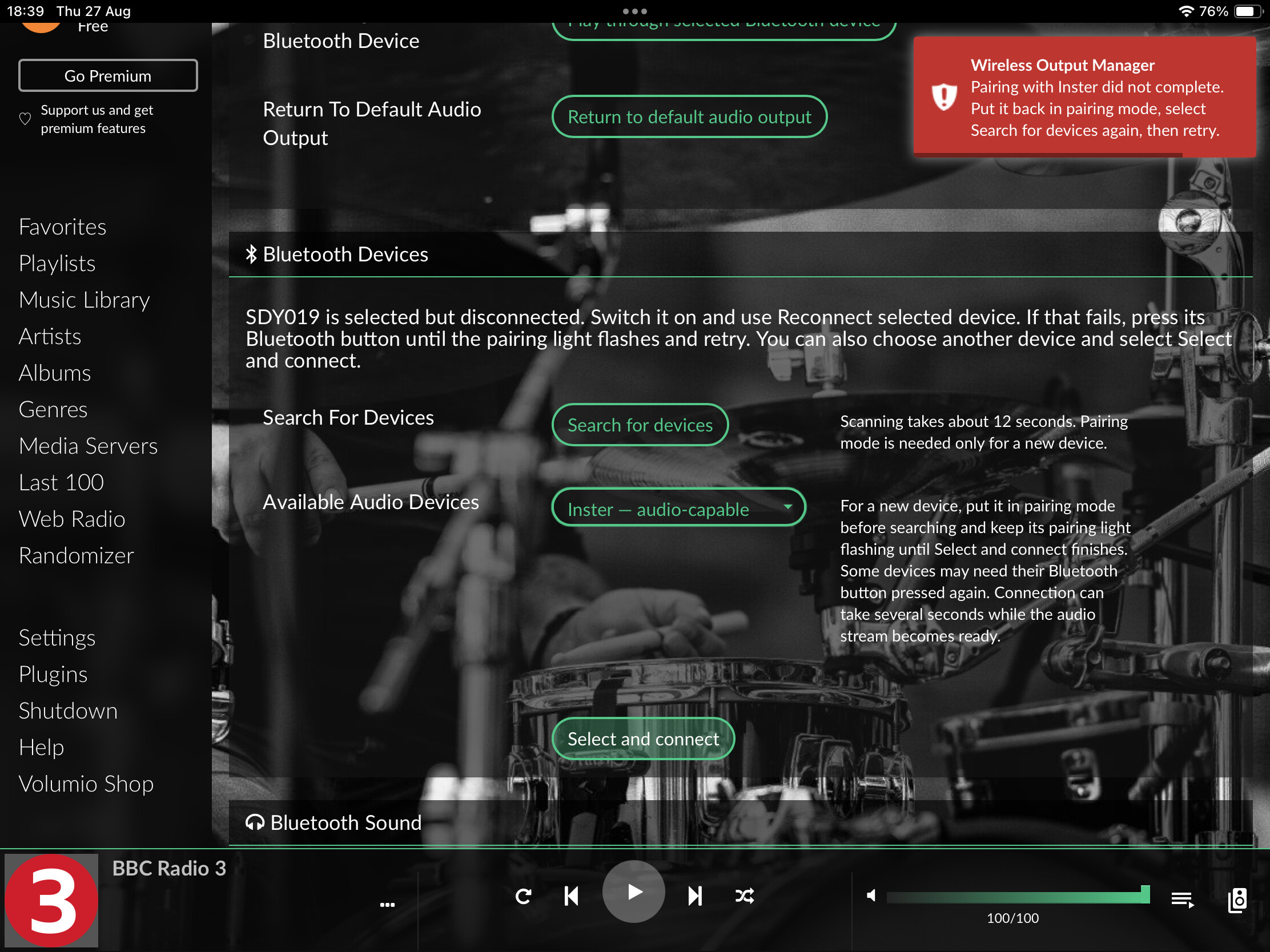
The only way I have found in the car (as new to me as is Bluetooth!) to add a new device is through the phone menu. Maybe the car is expecting a phone (different Bluetooth?) rather than a Volumio?
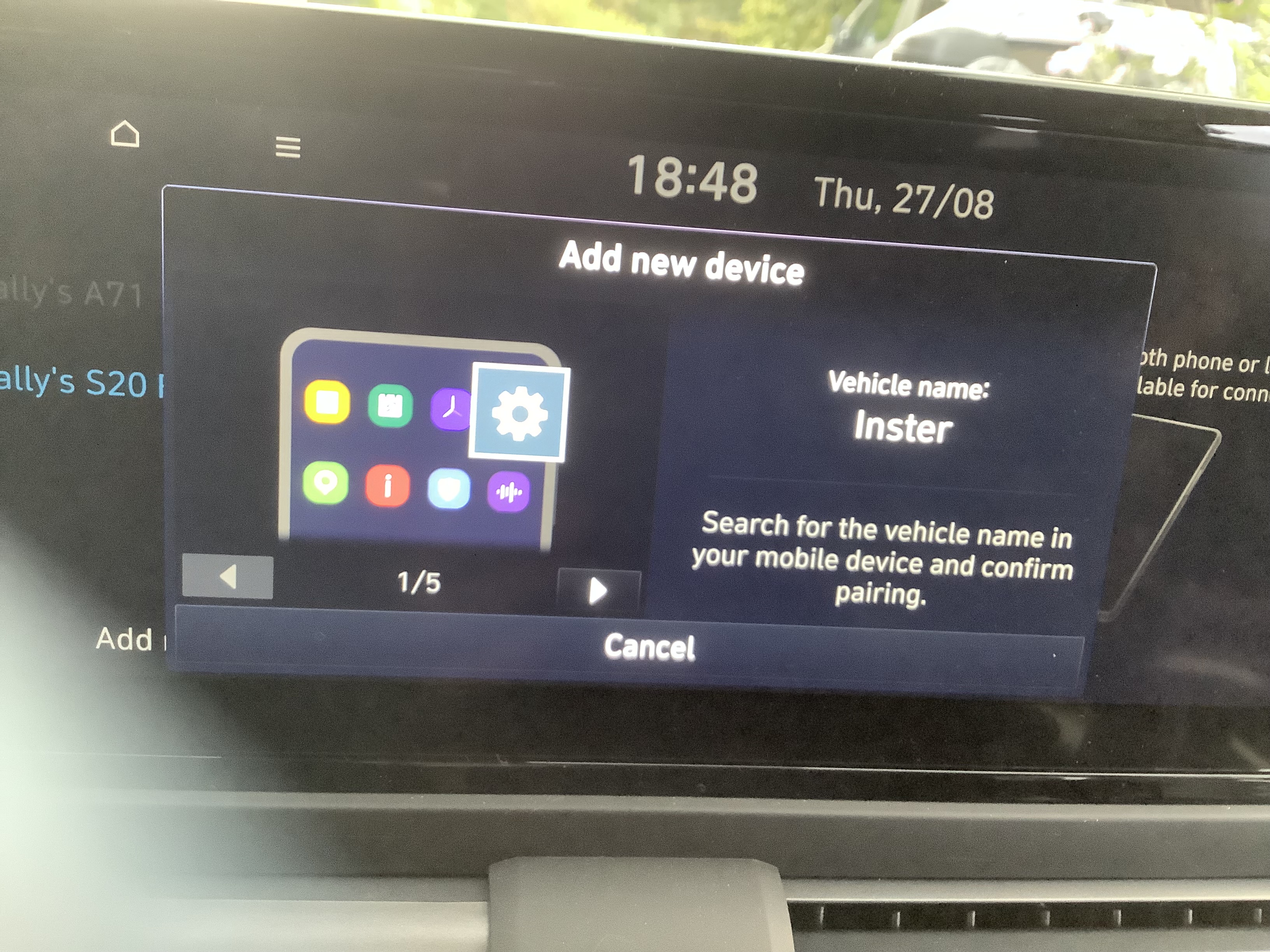
Thanks for the screenshots. They help narrow this down.
The fact that the plugin identifies the Inster as “audio-capable” is encouraging. Hyundai’s documentation indicates that pairing may require either:
- confirming the same six-digit passkey on the vehicle and connecting device, or
- entering the default passkey
0000on devices using the older pairing method.
The plugin cannot currently display or respond to an interactive Bluetooth confirmation, which may explain why pairing does not complete. There is also a possibility that the Inster’s phone-oriented setup expects hands-free telephone features as well as Bluetooth audio, but we should test the pairing confirmation first.
With the Add new device screen open, please connect to Volumio by SSH and run:
bluetoothctl
At the Bluetooth prompt, enter:
power on
agent KeyboardDisplay
default-agent
scan on
Wait until Inster appears and note its Bluetooth address. It will look similar to AA:BB:CC:DD:EE:FF. Then enter:
pair AA:BB:CC:DD:EE:FF
Use the Inster’s actual address.
One of the following may happen:
-
A six-digit number appears
Compare it with the number displayed by the car. Confirm it on the car and type
yesin the terminal. -
The terminal asks for a PIN
If the car does not show another number, try
0000, which Hyundai documents as its default passkey. -
Pairing succeeds without a prompt
Continue with the commands below.
-
Pairing fails
Please copy the complete error before trying anything else, as it should tell us whether confirmation, authentication or an unsupported profile caused the failure.
After a successful pairing, enter:
scan off
trust AA:BB:CC:DD:EE:FF
connect AA:BB:CC:DD:EE:FF
info AA:BB:CC:DD:EE:FF
quit
Please paste the output from pair through to info. In particular, we need to see the exact confirmation request or error and the resulting Paired, Bonded, Trusted and Connected states.
If manual pairing succeeds, return to Wireless Output Manager, search again, select the Inster and choose Select and connect. The plugin should then reuse the pairing saved by BlueZ.
If manual pairing also fails, the next possibility is that this particular Hyundai setup insists on connecting a phone with hands-free features rather than accepting an audio-only source. We can determine that from the terminal output before I consider making any plugin changes.
Thank you so much. It may be the weekend before I can try this.
1 Like
The weekend starts here! All connected. It took a couple of attempts but it’s now smiles all round!.
Ssh ing resulted in your first possible outcome.
Will try to pm you some screen shots.
Many, many thanks.
1 Like
Good to hear!
I’ll have to try to figure out a broadly applicable PIN workflow for the plugin.
Have a good weekend 
Hello jhscann,
thank you for the wonderful plugin! This is exactly what I was waiting for. Works like a charm.
1 Like