[BETA] Raspberry Pi boot from USB/NVMe

Initial thoughts:

  1. Sector size (logical/physical): 512 bytes / 4096 bytes. A physical sector size of 4096 bytes is not a problem, but a logical sector size of other than 512 bytes with a bootable vfat partition is.
  2. Some proprietary firmware/software that this vendor uses needs the additional sector size for some fancy parity stuff.

Will need to park it until Move Speed USB arrive (3 pcs)

As a test - can you remove pci=pcie_bus_safe from /boot/cmdline.txt and check?

1 Like

How can I access/remove pci=pcie_bus_safe from /boot/cmdline.txt when I can’t boot it up from the Pi?

The cmdline.txt is on boot vfat partition. Any system should see it.

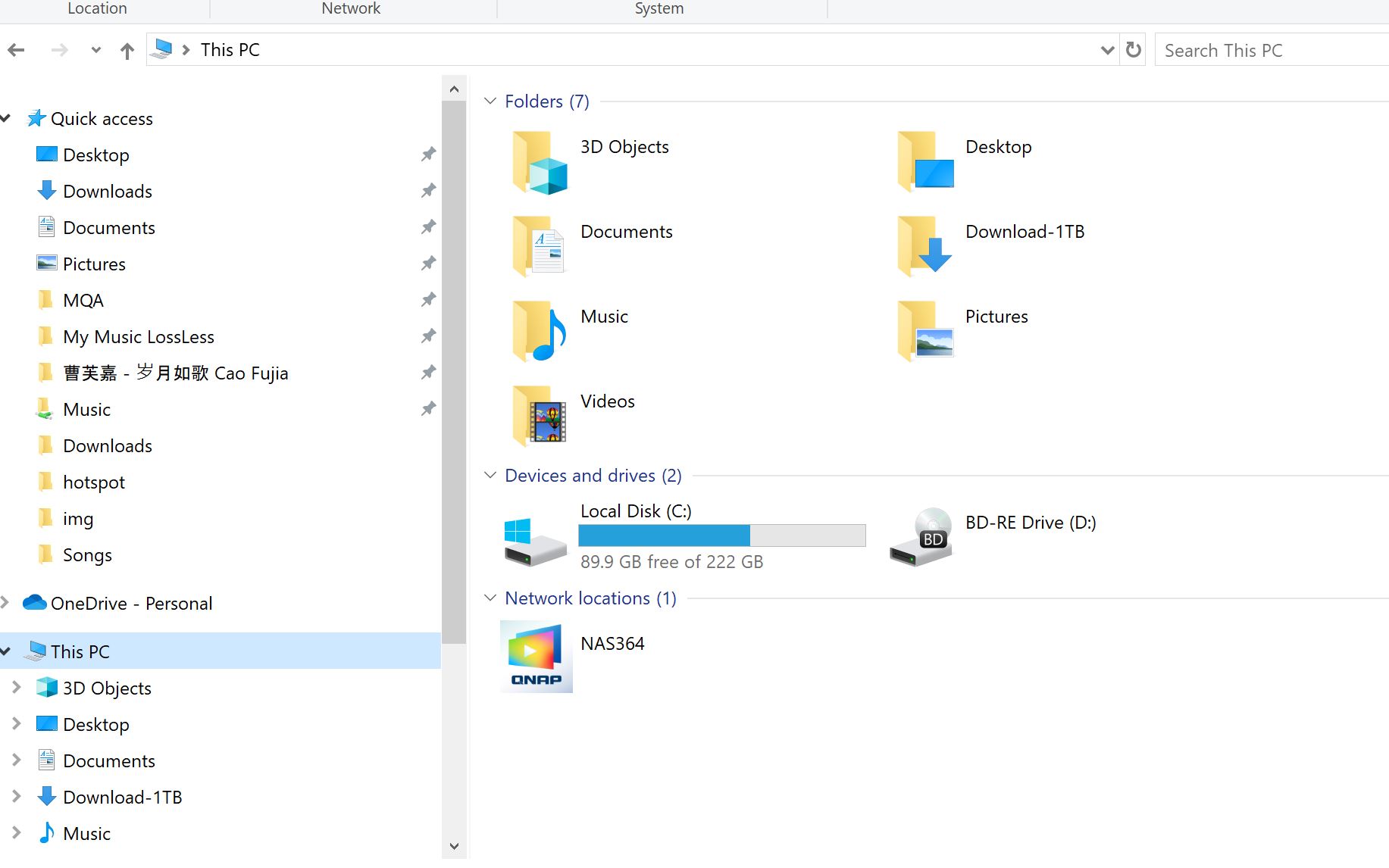
How can I access to vfat partition? This is what I see on my Windows machine.


It’s the smallest one - 738MB, however is shown as RAW.

If you have other Rpi or booted from SD Card we can check there.

I do have another RPi. Do you want me to boot from SD card (Volumio or Pi OS)?

Yes please, once booted connect USB, connect and login with ssh or directly on console type

sudo fdisk -l

It shows logical/physical : 4096/4096 on the USB.

I see.
What is the list of partitions?
We can try modify boot on USB and see it this makes any difference.

1 Like

there are 3 partitions.

/dev/sda1 - FAT32 (LBA)
/dev/sda2 - Linux
/dev/sda3 - Linux

Lets try the following:

sudo mkdir /tmp/usbboot

sudo mount /dev/sda1 /tmp/usbboot

Open cmdline.txt in editor

sudo nano /tmp/usbboot/cmdline.txt

Remove only pci=pcie_bus_safe from the boot parameters.

CTRL+O

CTRL+X

sudo sync

sudo umount /dev/sda1

and shutdown

sudo shutdown -h now

Test USB boot if there is a change in behaviour.

I got this error.

sudo mount /dev/sda1 /tmp/usbboot
mount: /tmp/usbboot: wrong fs type, bad option, bad superblock on /dev/sda1, missing codepage or helper program, or other error.
dmesg(1) may have more information after failed mount system call.

Thank you Andy,

Lets wait for my stash to arrive.

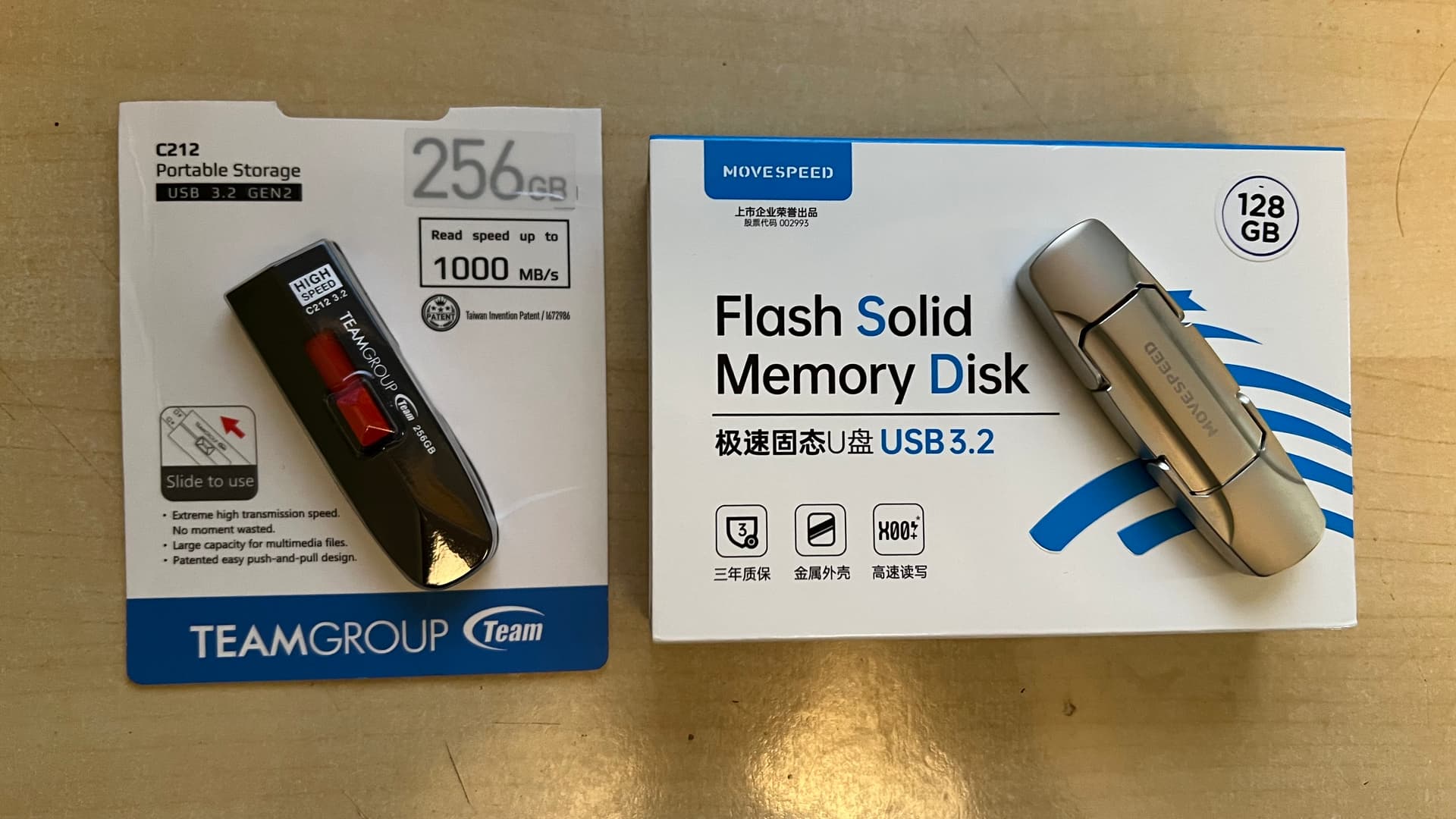
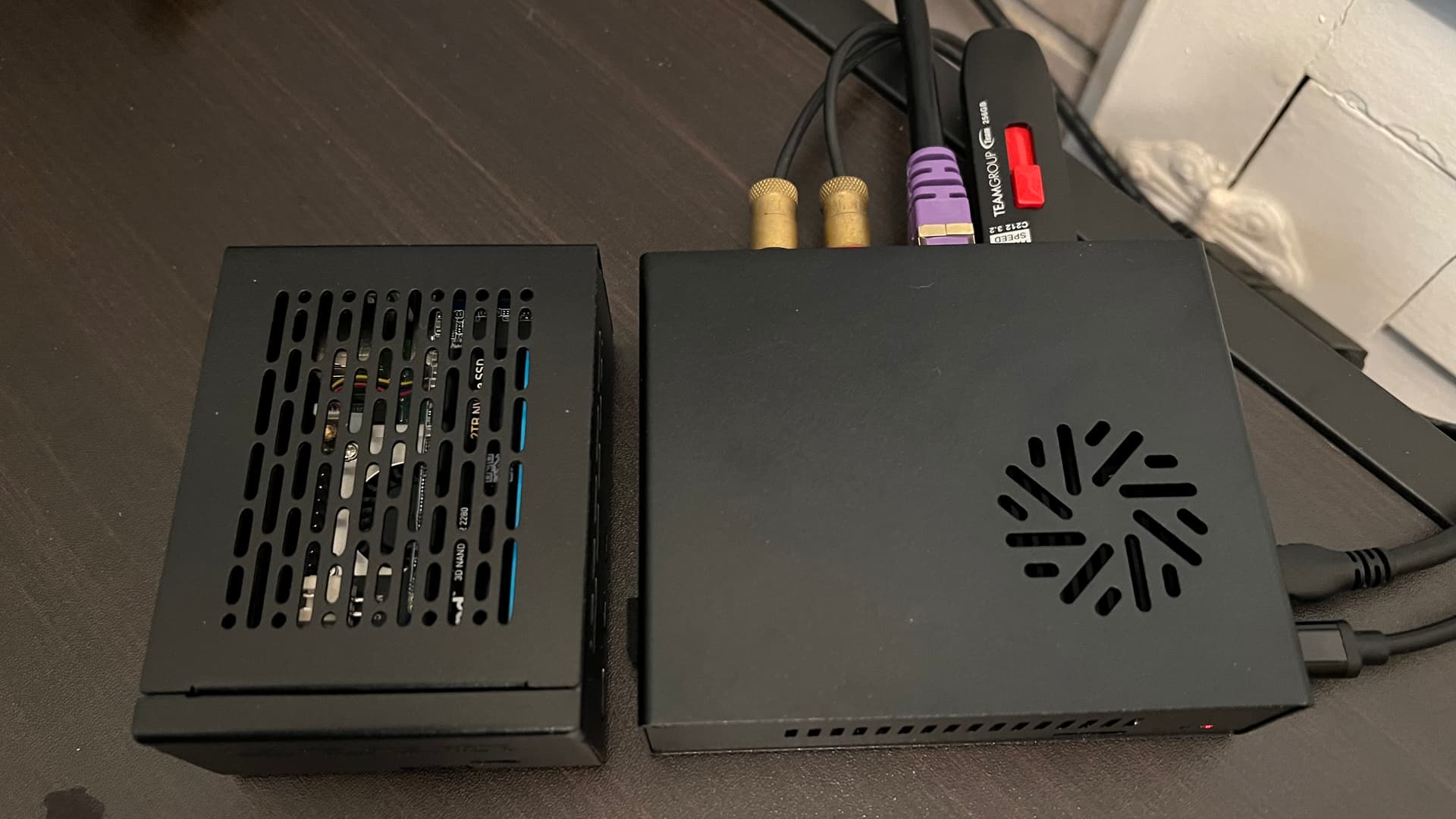
I can confirm that the USB 3.2 Gen 2 from TeamGroup (the one on the left) works well with Volumio. The one on the right, MoveSpeed USB 3.2 Gen 2 DOES NOT work with Raspberry Pi because the block size is 4096 bytes while RPi supports only 512 bytes.

However, I really like the MoveSpeed because the built quality is way way better than the TeamGroup. MoveSpeed is metal and provides USB A & C. TeamGroup is all plastic and only USB A.

TeamGroup 256GB USB 3.2 Gen 2
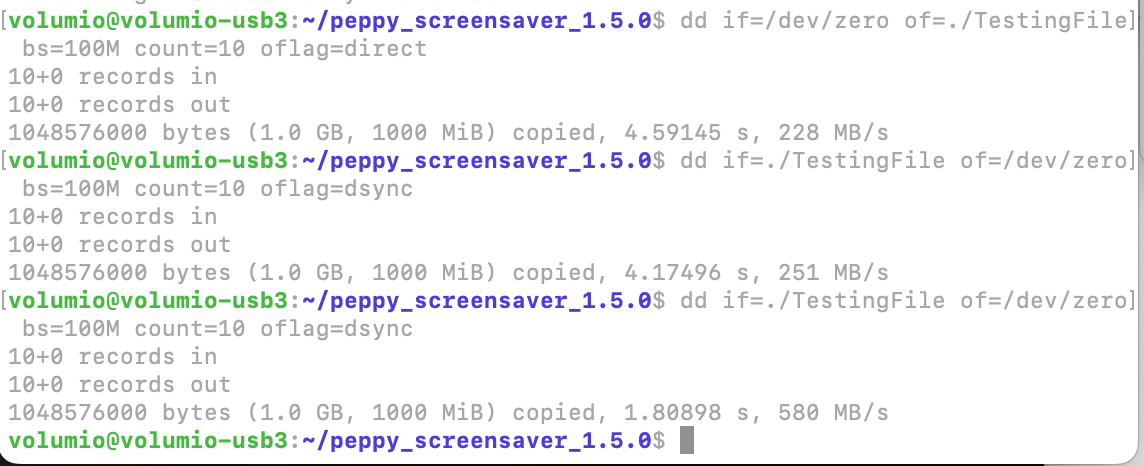
Write - 228 MB/s
Read - 251 MB/s


Also this one works pretty well. Tested on rPi4 and rPi5:

volumio@majority:~$ dd if=/dev/zero of=./TestingFile bs=100M count=10 oflag=direct                                                                    10+0 records in
10+0 records out
1048576000 bytes (1.0 GB, 1000 MiB) copied, 8.56867 s, 122 MB/s
volumio@majority:~$ dd if=./TestingFile of=/dev/zero bs=100M count=10 oflag=dsync
10+0 records in
10+0 records out
1048576000 bytes (1.0 GB, 1000 MiB) copied, 5.11019 s, 205 MB/s
volumio@majority:~$

@Wheaten How did you measure the read speed? Is it the actual number or from the info from Amazon?

The one that I got (TeamGroup), advertise at 1000/800 MBs but the actual number is 228/251 MBs.

I use these commands to get the numbers:

For write speed - dd if=/dev/zero of=./TestingFile bs=100M count=10 oflag=direct

For read speed - dd if=./TestingFile of=/dev/zero bs=100M count=10 oflag=dsync

Using for development, builds, etc - actually, no matter what I throw at it and my personal favourite for all sorts, from pen-testing, throughout data storage, all way up to ESXi/Proxmox:

SKK SD301:

Speeds are similar if not the same as shown here:

Sizes from 500GB and up seem to prefer cold start on rPi4, meaning that reboot will not initialize the device.

1 Like

I don’t like your commands :joy:

Updated my post.

Stumbled upon this topic, If I have time I will test it.

Yours is actually better. Mine says up to 1000 MB/s but I got only 251 MB/s. However, on the 2nd run on read command, the speed is a little more than double to 580 MB/s.